The Whiteboard
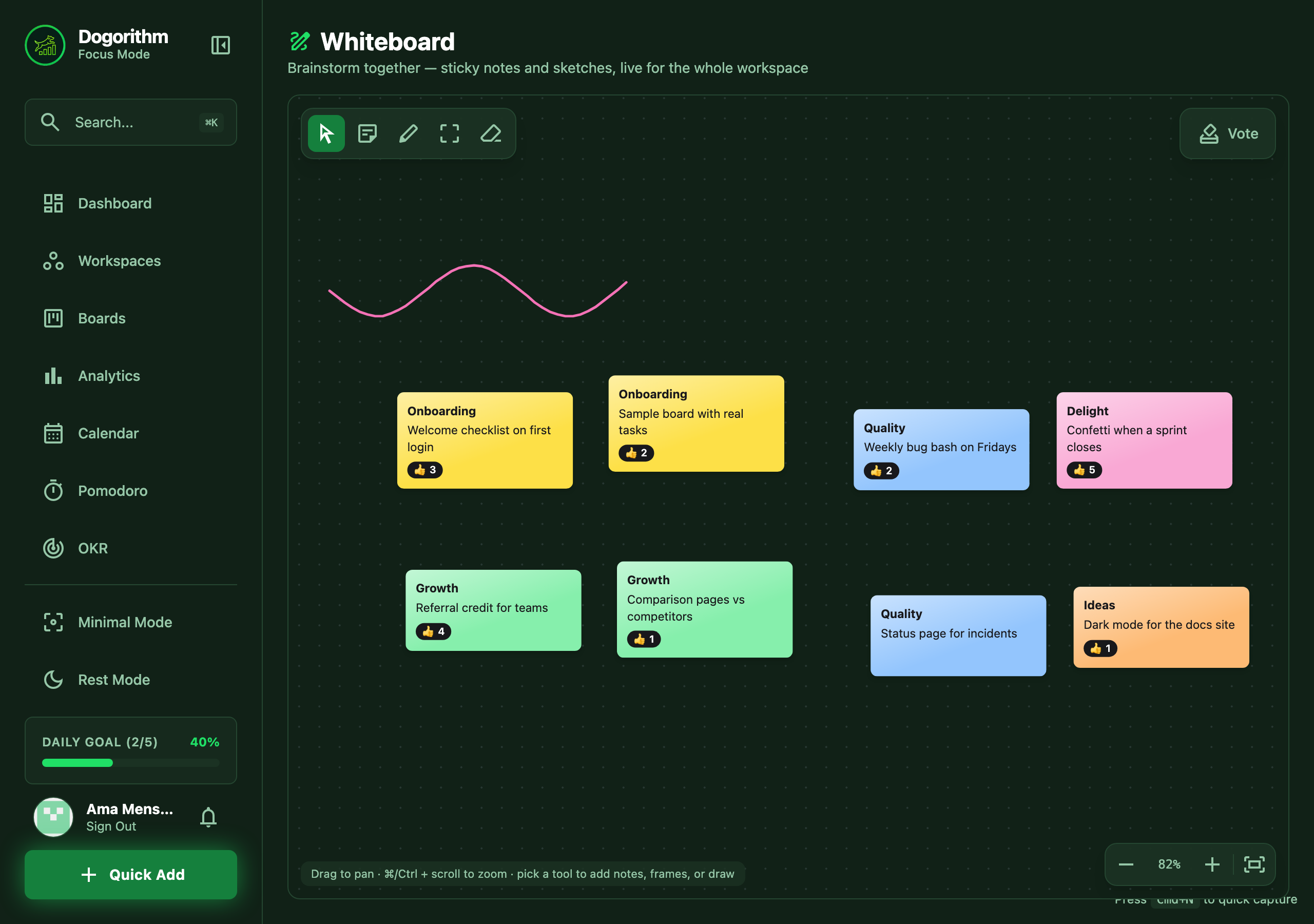
The whiteboard (/whiteboard) is a shared, infinite brainstorming canvas —
one per workspace, live for everyone in it. Where boards organize decided
work, the whiteboard is where the ideas fight it out first.
The Canvas
- Pan by dragging empty space; zoom with
⌘/Ctrl + scroll(anchored to your cursor) or the corner controls, and fit frames everything on screen at once. Plain scrolling pans. - Pick a workspace with the selector in the header — each workspace has its own board, and everything on it persists between sessions.
Sticky Notes
- Pick the note tool, click the canvas, and type: the bold title
focuses first,
Enterdrops you into the body, and clicking away saves. - Drag notes anywhere with the select tool — teammates watch them glide in real time. A clean click (no drag) opens the note for editing.
- Hover a note for its mini-toolbar: six colors and delete.
- Resize a note by dragging the handle at its bottom-right corner — make room for a longer thought or shrink it back down.
Drawing & Erasing
- The pen tool draws freehand strokes in six colors — sketch arrows, circles, or diagrams around your notes.
- The eraser tool removes any stroke or note it touches.
Dot-Voting
Every note carries a 👍 pill. Each person gets one vote per note — click to vote, click again to withdraw. Counts update live for everyone, votes can't be lost to simultaneous clicks, and your own vote shows as a filled pill. When the dust settles, the ideas with the biggest numbers win.
Timed Voting Sessions
For a real prioritization round — OKR planning, retro themes, feature bets — press Vote in the top-right corner and run it properly:
- Pick the votes per person (3 is the classic) and the timer, and optionally clear old votes for a fresh start. Everyone on the board sees the session begin at the same instant.
- While the clock runs, voting is blind: you can see where your votes went and how many you have left, but nobody sees totals — so early votes can't herd the room.
- A chip at the top counts down and shows your remaining budget; the person who started the session can end it early once everyone's done.
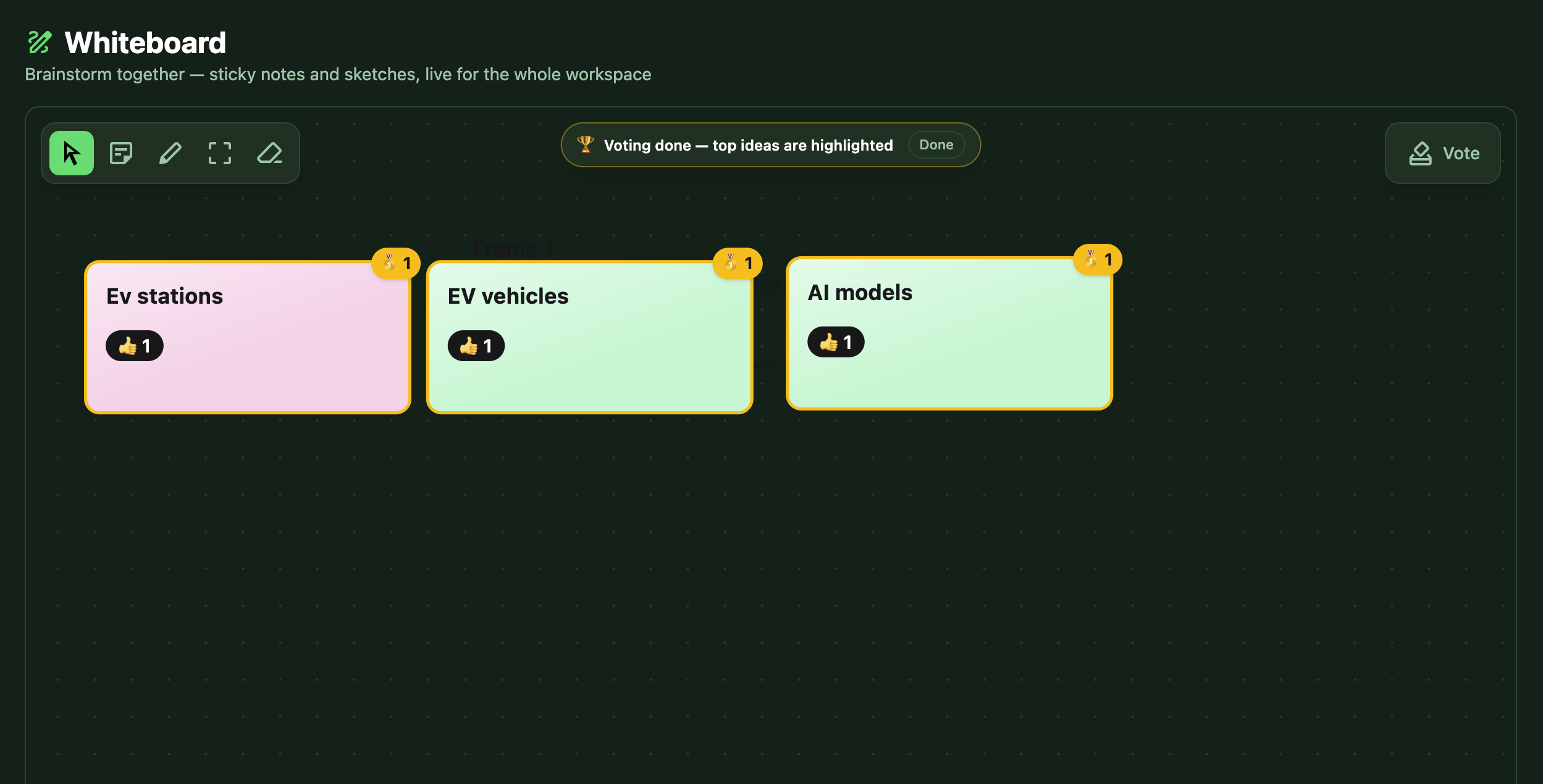
- When time's up, the votes flip face-up everywhere at once: the top three ideas wear 🥇 🥈 🥉 medals with their counts, ties share a rank, and the winners glow so the decision is unmissable.
Frames & Presentation Mode
Frames turn a pile of ideas into a structured workshop, Miro-style:
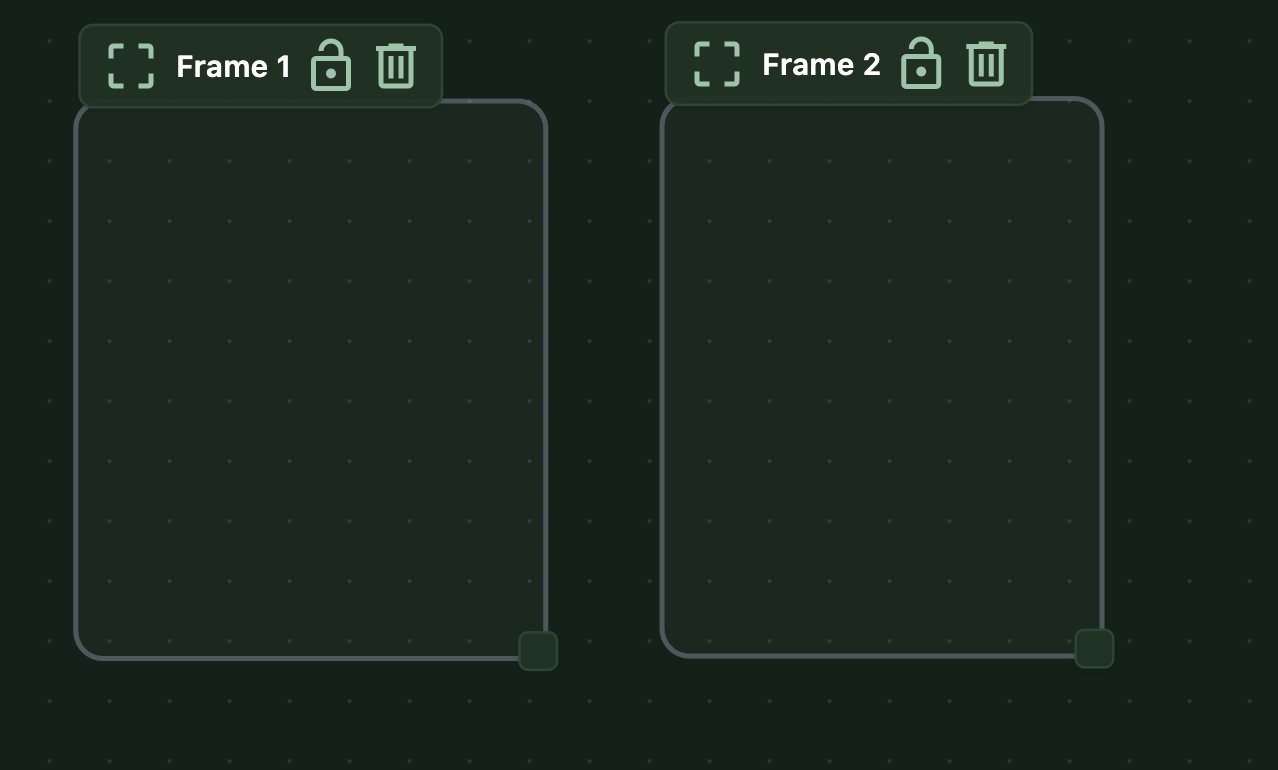
- Pick the frame tool and drag out a region (or just click for a ready-made one). Give it a title — "Objective 1", "Now / Next / Later", whatever the session needs.
- Drag the frame by its title and everything inside moves with it — notes and sketches keep their arrangement.
- Resize from the corner handle; lock a frame when its layout is final and it (and its title) can't be moved or deleted until unlocked.
- Press Present and the canvas glides from frame to frame — arrow keys
(or the on-screen controls) step through them in reading order, each frame
filling the screen,
Escreturns you to your old view. Your standup's screen share turns it into a slide deck the whole call watches.
Live Collaboration
Everything on the whiteboard syncs instantly through the same realtime infrastructure as boards: notes appear as they're created, drags stream smoothly while a teammate is still moving, and votes tick up in the moment. Workspace viewers get a read-only canvas — they can look and pan, but not change anything.