Card Features: The Deep Dive
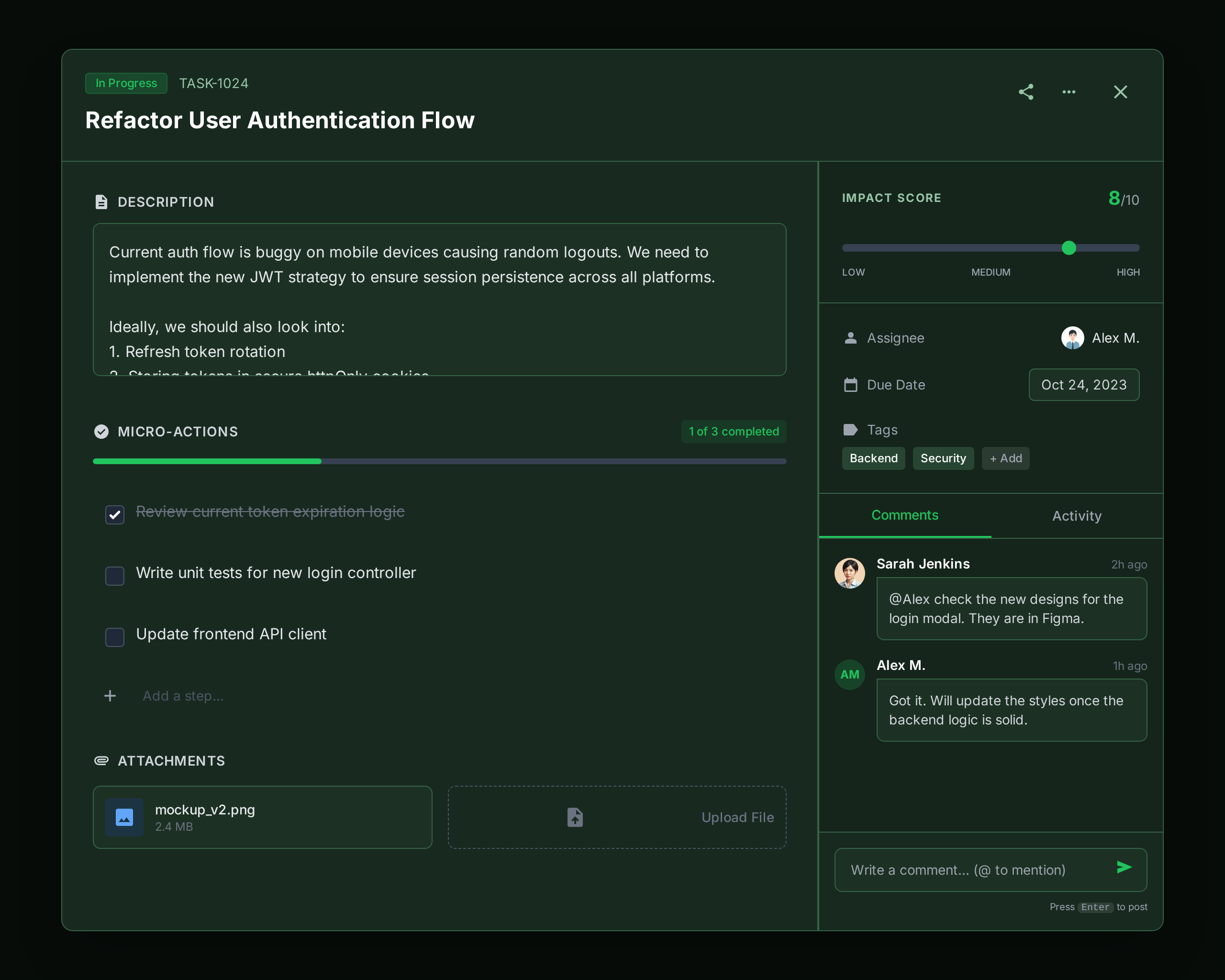
Action: Click on any card to open the Card Detail Modal.
This modal is the powerhouse of productivity. It allows for granular control over every aspect of a task.
📝 Content & Description
- Rich Text Editor: The description field supports Markdown. You can add bold, italics, bullet points, numbered lists, and even code blocks.
- Editing: Click the description to edit. Click "Save" to commit changes.
👥 Members & Assignees
- Assigning Users: Click "Members" in the sidebar. Select users from your workspace to assign them to this card.
- Effect: Their avatar appears on the card, and they may receive notifications.
- Removal: Click their avatar again to unassign them.
🏷️ Labels
- Organization: Use color-coded labels to categorize tasks (e.g., Green for "Design", Red for "Bug").
- Customization: Click the pencil icon next to a label color to rename it (e.g., change "Red" to "Critical").
Board toolbar and planning popups
Use Planning to open Primary goal (flag), Plan task batches (stack), or Planning budget (timer). Each opens a focused popup; Escape, the close button, or clicking outside closes it. Closing preserves unsaved planning inputs and keeps an active budget running. The budget popup shows remaining active time; its nudge still appears on the board.
Board tools groups activity, analytics, swimlanes, board theme, sharing, templates, bulk selection, and archiving. Enabled buttons and dropdown actions show a pointer cursor. Icon-labeled rows align consistently on desktop and mobile; checkmarks show enabled panels. Filter and New task remain directly accessible. About this view explains ranking and drag restrictions. The icon beside New task switches directly between Show all tasks and Show top three. Its tooltip describes the next action; green with a white icon indicates all-tasks mode. It remains available in Minimal Mode.
Primary goal and scope tradeoffs
Open Planning → Primary goal in the board toolbar. The board owner or a workspace admin can set one goal for the board's current planning period. Other participants can view the plan. Each period starts empty; previous periods stay stored, but this panel shows only the current one. Existing OKR boards remain separate.
Planning horizon (owners/admins, inside the same popup) chooses the period:
- Week (default): Monday–Sunday in UTC.
- Month: the calendar month in UTC.
- Project phase: a name plus start and end dates (inclusive, up to a year). While no phase covers today — before it starts or after it ends — the board plans by week and the popup says so.
Each period keeps its own goal and admitted tasks, so switching the horizon never deletes or moves a goal; switching back shows that period's goal again. The change is recorded in the board's activity.
Create tasks as usual, then choose an unfinished Task to add. Explain how it supports the goal and why there is room. Under What makes room?, choose a planned unfinished task to defer, or Capacity available and explain the extra capacity. Admit to plan saves the admission, optional deferral, and reason together. A completed task cannot serve as a capacity tradeoff; reopen it first if more work is needed. Blocked work may be planned, but the existing focus readiness checks still apply when you start it.
Defer task requires a reason and removes only its connection to the current goal. It does not delete, move, or reprioritize the task. Recent scope decisions shows the latest ten goal/scope changes for this period. Tasks stay outside the plan until explicitly admitted. API, import, and recurring creation do not enter the plan automatically.
When a primary goal exists, manual board/dashboard capture, templates, and duplication show Make room before adding work before anything is saved. Choose Capture for later and explain why, or (owner/admin) Commit to the current goal, choosing a task to defer or explaining available capacity. The task and scope change save together. A stale plan requests a fresh review. Cancel/Escape keeps your task draft without creating it. Boards without a current goal keep normal capture.
Turn on Show only goal tasks to hide unrelated work on the board; turn it off to see that work again. Other board filters still apply. Priorities and saved card order do not change. The plan itself lists all linked tasks and their current completion status, regardless of board filters.
If a teammate edits the plan or the week changes, saving stops safely. Choose Refresh plan, review the updated tasks and scope, then save again. Unsaved inputs are kept for review. A failed planning service does not block normal board use.
Deployment: apply migration 0019_weekly_goal with npm run db:migrate before
using this panel. It adds two tables without changing existing tasks. If rolling back
the application, leave those tables in place to preserve the saved plans.
Recent activity without consecutive-day pressure
Dashboard and Analytics show active days out of the last 7 days, including today, using UTC calendar dates. A day counts when your account records a task-completion activity or a positive time entry ending that day. Multiple records on one day count once. Saved focus time counts even when the session was stopped rather than completed. Edits, zero-length time logs, and another person's work do not count for you.
This is personal recorded activity across boards, not a project-specific streak or proof of every kind of work. Older work without these records cannot be reconstructed; deleting time logs or their tasks can affect the count. A break does not reset earlier days still inside the seven-day window. The label explicitly uses UTC, which may differ from your local calendar day. Focus-session changes refresh these views.
XP, badges, and existing streak mechanics stay intact. Dashboard streak details are available under Legacy streak history, closed by default. The primary Dashboard and Analytics cards use rolling activity rather than streak or “On Fire” labels.
Real-world rewards after focus
After Save and finish successfully logs a focus session, its summary offers a favorite song, time away from the screen, or your own small reward. Take a break closes the summary; it does not start another session or enable Rest Mode. You can also continue with the suggested task through the existing readiness check, or choose Done for now. Rewards require no streak or session-count milestone.
These are optional suggestions, not tracked rewards or external habit integrations. Failed saves keep your note available for retry and do not show the reward summary. Stopping/abandoning a session keeps the existing time-only behavior.
Planning time and organizing nudges
Open Planning → Planning budget in the board toolbar and choose 5, 10, or 15 minutes, then Start planning budget. You can cancel it at any time. The countdown measures active time: the board must be visible, focused, and have received a click, keypress, or scroll in the last minute. Hidden tabs, inactivity, and Minimal Mode pause counting; long sleep/throttling gaps are ignored. Starting focus or leaving this board resets it. The timer is local to this tab and is not saved or shared with teammates.
When the budget ends, the board offers Review and start focus for the highest-impact unfinished, unblocked task matching your filters. It uses the normal dependency and readiness checks. Nothing starts automatically; Keep planning dismisses the prompt without changing your task draft. If no task qualifies, adjust filters or capture a task.
Without a running budget, a one-time nudge appears after 12 active minutes. Dismissing it does not produce repeated nudges during that board visit. A successful focus start resets the guard. This implements Planning Budget as an explicit transition prompt, not a forced start that bypasses task readiness.
Moving cards responsively
Drag cards between columns in the default Top 3 view, with filters applied, or in Show all. In Top 3 and filtered views, only the dragged task moves; it goes after all existing destination tasks, including hidden ones. Hidden tasks keep their saved positions. A completed task may disappear from Top 3 after the move; the success message confirms its destination. Same-column drops in these limited views leave the saved order unchanged.
For manual reordering within a column, choose Show all tasks and clear filters, including the weekly-goal-only filter. Reordering uses short animations and dropping settles the card immediately while saving continues in the background. Existing readiness checks still apply; failed moves show an error and reload the board's saved state. On touch screens, hold for 200 ms to start dragging so normal taps and scrolling remain available.
Meeting Audit
Open Board tools → Meeting Audit (clock icon), then Load audit. Choose Today, Last 7 days, or Last 30 days. Each window includes today in UTC. The popup compares your saved time on the current board, with meeting, Focus Mode, and other totals, a meeting-to-focus ratio, and a daily breakdown. Switching periods uses the loaded snapshot; use Refresh audit after saving time or changing labels. Exit Minimal Mode to access Board tools.
To record meetings, create a board label named Meeting or Meetings, apply it to a task, and save time from that task's Time Tracking section. Label matching ignores capitalization and surrounding spaces. Board owners/admins create labels; task leads can apply existing labels. Task titles and scheduled calendar events do not establish attendance and are not used by this audit.
Meeting labels take precedence over Focus Mode, so a single entry never contributes to both categories. Non-meeting entries count as Focus Mode only when their user, task, start, and end timestamps match a saved completed or abandoned focus session. Other entries remain Other logged time, even if their description says “Focus session”. Active sessions and sessions without saved time entries do not count.
The ratio is meeting time divided by focus time; it is unavailable when focus time is zero. The meeting percentage uses only meeting + focus time, excluding other logged time. Durations under a minute are shown as <1m; displayed minutes are rounded down, while ratios use the underlying durations.
Entries crossing UTC midnight are allocated proportionally across days. Durations are capped at elapsed time; invalid or future-ended records are excluded. Overlapping entries are summed, not deduplicated: these are recorded totals, not unique occupied hours. Current labels classify historical entries too. Moved or deleted tasks and deleted entries no longer contribute to their former board. No teammate's time is included. This report uses a different, explicit classification from the older Analytics title-based category estimate.
Loading checks current board access, and a failed refresh clears the prior snapshot. The audit changes no tasks, labels, time records, or focus sessions. No migration is required.
Labor Log
Evidence for work outside your core role, such as committee service, mentoring, or requests that aren't part of your job. Open Board tools → Labor Log (receipt icon), choose Last 30, 90 or 365 days (UTC), then Load log.
- Mark the work: give a task a board label named Out of scope, Unpaid or Service. Case, outer spaces, hyphens and underscores don't matter, so "out-of-scope" works too. Then save time in the task's Time Tracking section.
- Read the report: your out-of-scope time, all time you logged on the board, the out-of-scope share, and each task with its time, entries and last worked date, largest first. Up to 200 tasks are listed; totals always include every task.
- Share it: Copy summary gives a plain-text report with the period and totals. Download CSV gives the task table for a spreadsheet. Cells that look like spreadsheet formulas are neutralised.
Only your own saved entries on tasks currently on this board count. Current labels classify past entries too, so removing a label removes that task's history from the log. Deleted entries, deleted tasks and tasks moved to another board drop out. Running timers count once saved. An entry that began before the period counts only for the part inside it; overlapping entries are added together, so totals are recorded time rather than unique hours. It's your own record, not verified attendance, so review the tasks before sharing. Changing the period clears the previous result until you load again. The log changes nothing and needs no migration.
Role Clarity Cards
Open Board tools → Role Clarity (badge icon). Each person has a card showing what they Can decide and what they Need help with. Use Find a person to search names. Decision scope starts with board decisions; select a task to see editing, moving, tracking time, attachments, staffing, and lead authority. The selector includes tasks hidden by Top 3 and board filters.
The approval panel names board owners/admins and, for a selected task, its effective editors. Ask them to make a change or review your access. Owners/admins manage board settings and appoint task leads. Task leads edit and staff their own tasks; contributors can work on their assigned tasks. Viewers remain read-only even if assigned as leads, and team titles do not add board permissions. The board creator and workspace owner retain their effective owner authority.
These cards describe Dogorithm permissions, not organizational job descriptions or an external approval workflow. They use the board's loaded membership and task assignments and update when the board refreshes. Removed members are not listed just because an old assignment remains. No roles or tasks are changed by this tool. Personal boards show their owner. Exit Minimal Mode to access Board tools.
Skill Export
Open Board tools → Skill Export (work-history icon), then Build skill profile. The profile covers the last 365 UTC calendar days, including today, on the current board. Only tasks with a recorded completion action by you qualify; board ownership or assignment alone does not attribute someone else's work to you. Tasks must still exist on this board in a Done, Complete, or Completed column. Reopened tasks, future events, and older tasks without completion records are excluded. Repeated completion events count once per task, using the latest matching date.
Current task labels group the evidence. Writing → Written communication, Coding → Software development, and Email → Professional correspondence. Other labels remain Work categories, not inferred qualifications. Quick Win, Focused Work, and Deep Dive are complexity labels and do not create skill groups. Tasks without work-type labels appear separately in the export. Tasks with multiple labels can appear in multiple groups, while the overall count stays distinct.
Expand Review task evidence to inspect supporting task titles and dates. Copy skill profile or Download skill profile exports plain text, including unclassified tasks, the period, and attribution limits. This is evidence for your review, not a claim of proficiency, sole authorship, or a verified credential. Check the task titles before sharing the file. No AI provider receives the data.
The profile uses at most the 500 newest matching tasks and explicitly reports when older matches are omitted. It is a snapshot; use Refresh skill profile after completing tasks or changing labels. Each load checks current board access; a failed refresh clears the prior snapshot and offers retry. The tool changes no tasks and publishes nothing. Minimal Mode hides Board tools; exit it to access this popup. No database migration is required.
Outline Builder
Open Board tools → Outline Builder (numbered-list icon). Describe your document (up to 1,000 characters) and set a whole-number target of 300–100,000 words. Choose Ask me questions to get three tailored questions about the document's audience, purpose, evidence, or structure. Answer each (up to 2,000 characters), then choose Generate outline.
The result contains 3–12 chapters, each with a title, coverage summary, and positive word target. Chapter targets add up exactly to your total. Review the AI suggestion before using it. Changing answers requires Regenerate outline; the existing result describes the last successful generation. Failed generation keeps your answers and previous result for retry. Change document requires confirmation before replacing questions, answers, and the outline.
Copy outline or Download outline exports plain text. Closing the popup preserves work while you stay on this board; leaving or reloading does not. The builder does not change tasks or the Bad First Draft scratchpad. Minimal Mode hides Board tools; exit it to access the builder.
The topic and answers are sent to the configured AI provider when you request a step. Each successful step counts as one AI action under your existing plan; regeneration counts too. If AI is unconfigured, the quota is exhausted, or a request fails, the popup explains the problem without discarding your inputs. No generated outline is automatically shared with teammates or saved as a server document.
Bad First Draft Mode
Open Board tools → Bad First Draft Mode (writing icon). The popup invites a rough first attempt without scores, timers, or spelling underlines. Write as much or as little as you need. This does not start or stop a focus session.
Your text is saved as you type in this tab's session storage, separately for each account and board. Closing the popup or reloading the tab keeps it. It is not sent to the server, added to a task, or shared with teammates. This is a temporary scratchpad: Copy draft or Download draft as a plain-text file to keep your work before closing the tab. Browser restore/duplicate-tab behavior may retain a copy; it is not cross-device storage. Discard draft requires confirmation.
If tab storage fails, a visible message asks you to copy or download your text. The current text remains available while the board stays open; leaving warns about unsaved text. A failed discard keeps the text, and clipboard failure offers a manual-copy/download fallback. Escape closes the popup and returns keyboard focus to Board tools. Minimal Mode hides Board tools; exit it to open this writing popup.
Rest Mode
Choose Rest Mode in the sidebar (moon icon in the mobile header), then Resume workspace when ready. The preference is saved to your account and read on navigation and return to the tab; connected tabs also receive an update. Save failures show a retryable message. The board and other page content stay mounted but hidden, preserving local drafts until you navigate or reload. Global task/navigation shortcuts are disabled while resting. Minimal Mode keeps its independent setting.
Routine mentions/comments, due-date mail, standup invitations, digests, web push, and new in-app call rings are paused. Notification records remain in your history; resuming restores your existing email choices. Alerts already queued or in flight may still arrive. Password resets, verification and workspace invitations remain available.
Rest Mode does not stop ongoing focus/Pomodoro timers or calls. The floating focus session controls remain available; resume the workspace to manage other timers or call controls. Planning-budget counting pauses while Rest Mode is active. After five consecutive busy UTC days, an optional suggestion offers Enter Rest Mode or Not today. A busy day means at least 5 distinct tasks completed or 2 hours of positive logged work. Logged time counts on the UTC date the entry ends; repeated completions of the same task count once per day. The run must end today or yesterday; a broken run expires the suggestion. Why this suggestion? explains the threshold and the last qualifying day. This is a workload reminder, not a health assessment.
Rest Mode never activates itself. A failed save leaves the suggestion available for retry. Not today dismisses it for the current UTC day in this browser, separately for each account, and syncs that choice across open tabs. Entering Rest Mode also dismisses it for the day. Dismissal is not shared across devices; if its browser storage is unavailable, the suggestion keeps the dismissal in memory for that session. Suggestions are hidden during Minimal Mode, active focus sessions, calls/call lobbies, and Rest Mode. Date rollover refreshes eligibility when the tab is active again.
Operators: apply 0020_rest_mode before deploying this feature. It adds a default-off,
non-null preference without changing existing settings. Roll back the application
while retaining the additive column; do not drop preference data. The migration was tested on disposable PostgreSQL and applied to the configured
production database on October 3, 2026; existing preference values were verified unchanged.
Minimal Mode
Use Minimal Mode near the bottom of the sidebar, or the focus icon in the mobile header, to simplify the workspace. The preference is saved in this browser. Minimal Mode and Rest Mode align with the sidebar navigation; when collapsed, their icon buttons remain stacked vertically. Exit Minimal Mode is always available, including on phones.
Minimal Mode keeps Boards, task details, capture, and the focus timer available. It hides the desktop sidebar, mobile menu/alerts bar, board planning panels and secondary toolbar controls. Other pages are visually hidden with a link back to Boards; exiting restores the current page and its draft without a navigation. Switching routes still follows normal navigation behavior. Existing board filters continue to apply; exit Minimal Mode to change them. Top-three/all-task controls remain available.
Active focus sessions and incoming calls are preserved. This is not Rest Mode: it does not pause notifications, change permissions, or alter saved tasks. Storage failure only prevents this preference from persisting. Other tabs keep their current choice until reloaded.
Cumulative flow
Open Board tools → Board analytics to see the Cumulative flow chart: for each day, how many tasks sat in each column, stacked with finished work at the bottom and the inbox on top. Switch between 30 and 90 days. A band that keeps widening is work piling up in that column; a flat Done band means nothing is finishing. The counts are taken once a day, so the chart starts from the day this feature arrived and grows from there; today's point is always live.
Cycles, epics and the timeline
For teams that plan in sprints and group work into bigger pieces:
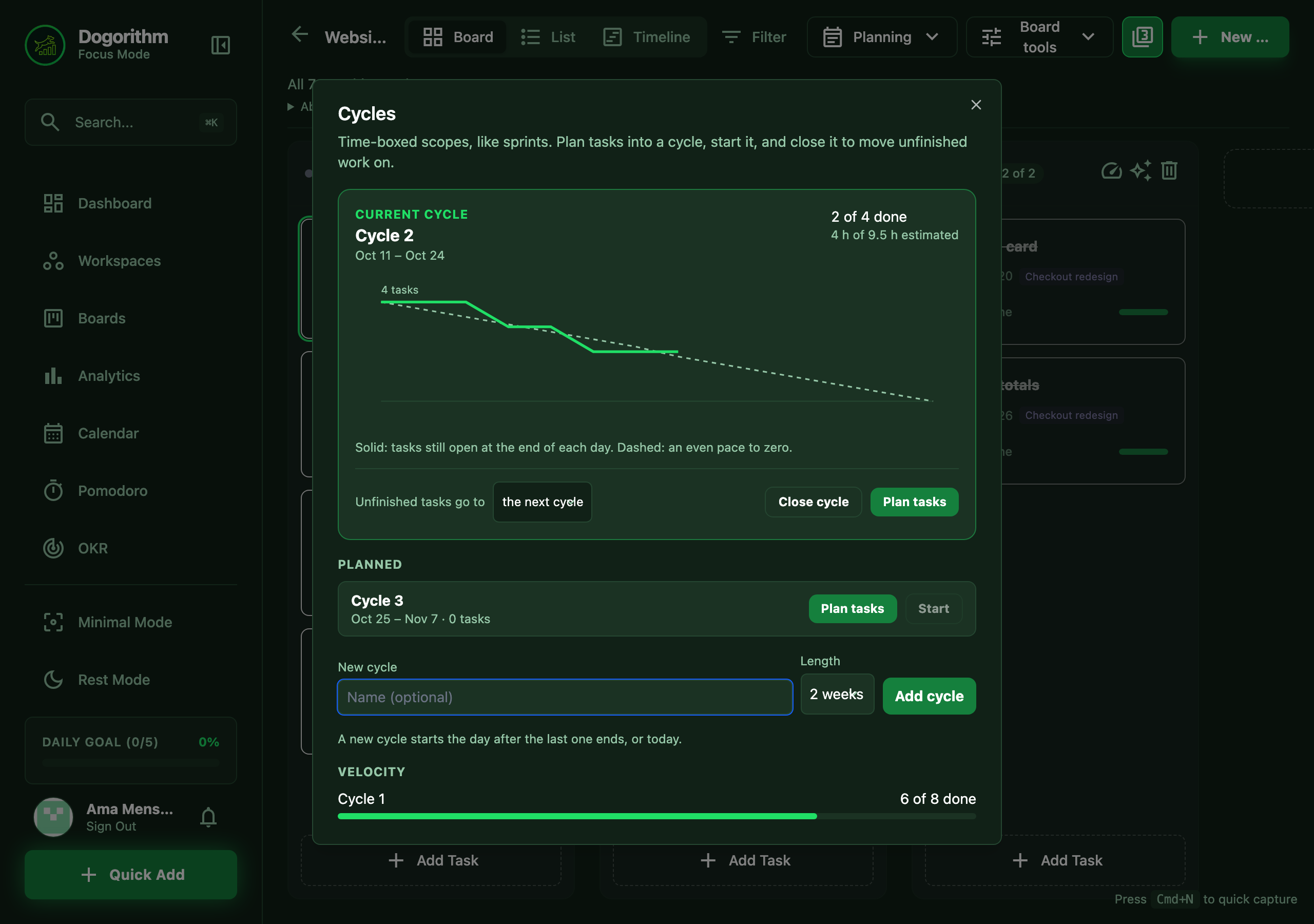
- Cycles are time-boxed scopes, like sprints. Open Board tools → Cycles to add one (one to four weeks; a new cycle starts the day after the last one ends, or today), tick tasks from the backlog to plan them in, and choose Start. A board runs one cycle at a time.
- The current cycle shows how many tasks are done and a burndown: tasks still open at the end of each day against an even pace to zero.
- Close cycle records what was done (its velocity) and moves unfinished tasks to the next planned cycle (one is created if needed) or back to the backlog.
- In task details, the Cycle field moves a task between cycles and the backlog.
- Epics group tasks. Tick This task is an epic in a task's details, then choose it in other tasks' Epic field, on any board of the same workspace. An epic shows how many of its tasks are done, on the board and in its details.
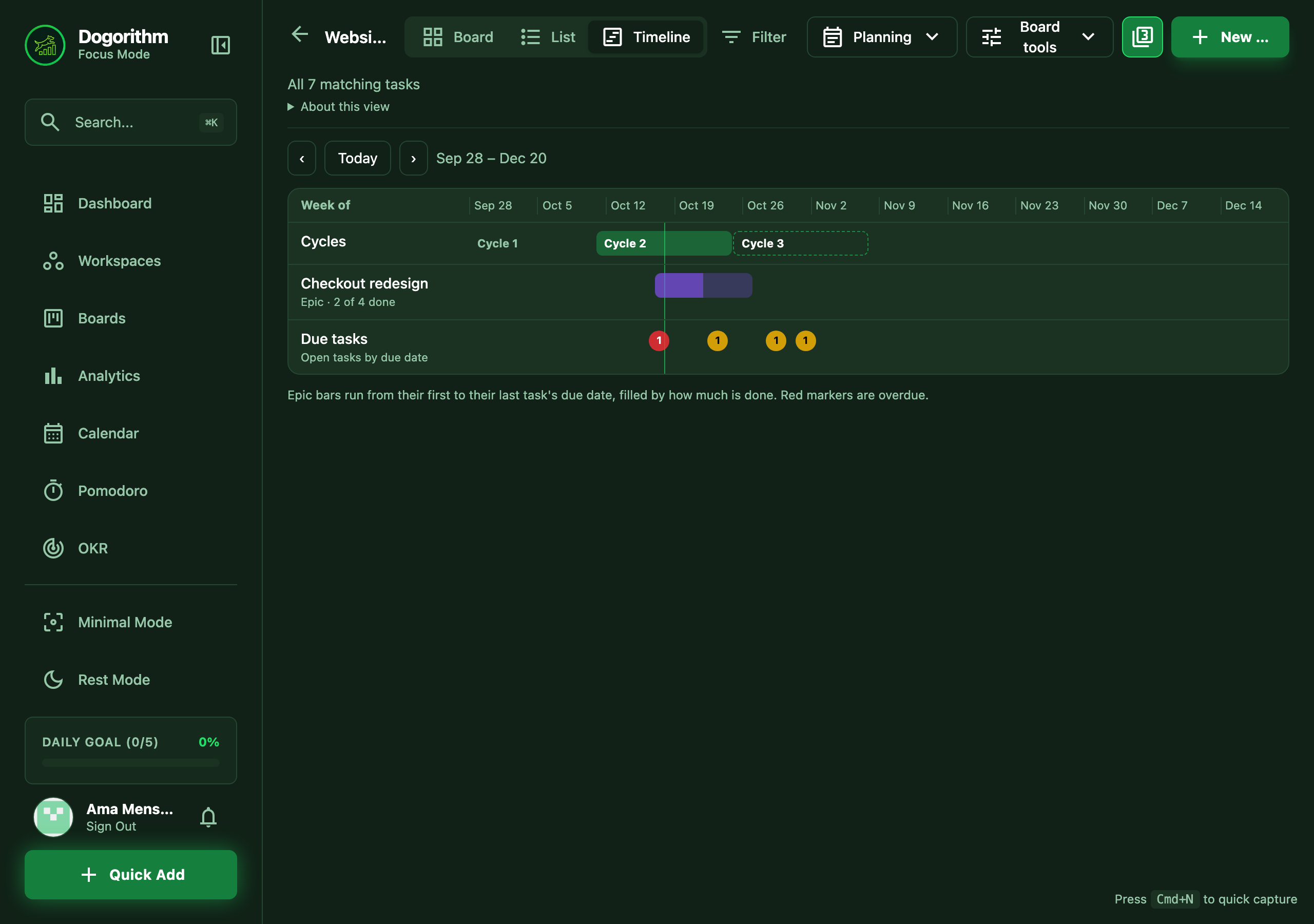
- Timeline (the third view next to Board and List) shows twelve weeks: cycles as bars, each epic from its first to its last task's due date (filled by how much is done), and open tasks by due date, with overdue ones in red. Click an epic or a marker to open it.
- Below it, Dependencies lists each linked task by due date, including prerequisites from other boards (with their board's name), with an arrow from each prerequisite to the task waiting on it. A dashed red arrow means the prerequisite is due after that task, and the header counts those.
- Filter can show only the current cycle, the backlog, or one epic, and Board tools → Swimlanes → By epic groups the board by epic.
- Plan the next cycle with the agent (
Cmd/Ctrl + Kon a board) proposes backlog tasks for the next cycle, sized by your velocity.
List view
- List (next to Board at the top of a board) shows each task as one row, grouped by column, with its labels, epic, assignees, due date (red when overdue) and impact. Click a row to open the task.
- Change a task's column from the menu at the end of its row;
Cmd/Ctrl + Zundoes it. Click a group's name to fold it away. - Filters, Top 3 and Show all work here too. With Board tools → Swimlanes on, the list groups by assignee, label, priority or epic instead of by column.
- The view is kept in the board's link (
?view=list), so a reload or a shared link opens the same view.
Automations
Rules that do the routine moves for you. Open Board tools → Automations; board owners and admins can add, edit, switch off and remove them, and everyone on the board can see them.
- When: a task is added, a task enters a column you pick, a task is finished (enters any done column), or a task passes its due date (checked once a day, at 08:00 UTC).
- If (optional), up to five checks that must all hold when the rule fires: it has or doesn't have a label, it's assigned to someone or to nobody, impact is at least or at most a number, it has or has no due date, it's in a column, or its title contains some text. They look at the task as it is when the rule runs, so an earlier rule's change counts. A rule whose checks fail doesn't run.
- Then, up to five actions in order: assign someone, add a label, move it to a column, make it due in N days, add a comment, notify its assignees (or the board owner when nobody is assigned), or post to the workspace chat.
- Else (with conditions only), up to five actions that run instead when the checks fail. For example: if impact is at least 8, add the label Urgent; otherwise, comment "Review in planning".
- For related tasks (up to two branches), actions run on tasks related to the one that triggered the rule, instead of on it: its epic, each task in this epic (when the task is an epic), or each task it blocks (up to 50 tasks). For example: when a task is finished, for each task it blocks, move it to To Do. Branches run with the then-actions, never on the else path.
- A rule runs as the person who last saved it, with that person's rights. If they leave the workspace, the rule stops working until someone saves it again.
- Each rule shows how often it ran and, when something went wrong, why (for example, "That person is not a member of this workspace").
- Changes an automation makes never start other automations, so two rules can't bounce a task back and forth.
- Free boards hold three automations. Pro boards have no limit, and no plan limits how often they run.
Top-three board view
Boards open with up to three highest-impact tasks across all columns. Existing label, assignee, impact, and weekly-goal filters apply before ranking. Completed and Blocked columns are excluded; ties use task IDs for consistent ordering. This is a view, not a readiness guarantee: the existing prerequisite checks still apply when starting work.
Choose Show all tasks to reveal every matching task, including completed and blocked work. Choose Show top three to reduce the view again. Switching animates: hidden tasks fold away (or unfold) and the remaining tasks glide into their new order. This choice lasts while you stay on that board; another board or a reload starts with three. A direct task link still opens its details even if it is outside the top three. New low-impact tasks may be outside this view; use Show all to find them.
The same limit applies in swimlanes. Column badges show visible and total counts; WIP warnings count all tasks. Changing the view clears bulk selection, and newly hidden tasks leave selection when filters change. Cross-column dragging works in Top 3 and filtered views without changing hidden task positions. Same-column reordering and AI sorting require Show all with filters cleared. The existing move controls also remain available. The dashboard's five-task queue is unchanged.
Planning labels and task batches
Open Planning → Plan task batches in the board toolbar. Owners and workspace admins can choose Add planning labels to add missing presets: Quick Win, Focused Work, Deep Dive, Writing, Email, and Coding. Existing names (ignoring case and surrounding spaces), colors, and assignments are preserved. Apply/remove them using Add Label in task details, like any other label. Complexity labels are optional and do not change impact scores; choose the one that best describes the work. Renaming a complexity label makes it behave like a custom grouping label.
The panel suggests groups of two or more unfinished tasks sharing a work-type or custom label. It respects your current filters and excludes completed and Blocked columns; reopened tasks can appear again. Show … tasks applies the ordinary label filter. Clear label filter keeps your assignee and impact filters. A task with multiple labels can appear in several groups; complexity labels are not used as batch categories.
Suggested block lengths sum existing task estimates. Each task without a positive estimate contributes a suggested 25 minutes, with the unestimated count shown. These are planning suggestions, not commitments or calendar bookings. Starting focus still uses the existing prerequisite check. Empty results may mean fewer than two matching tasks or that your current filters hide them.
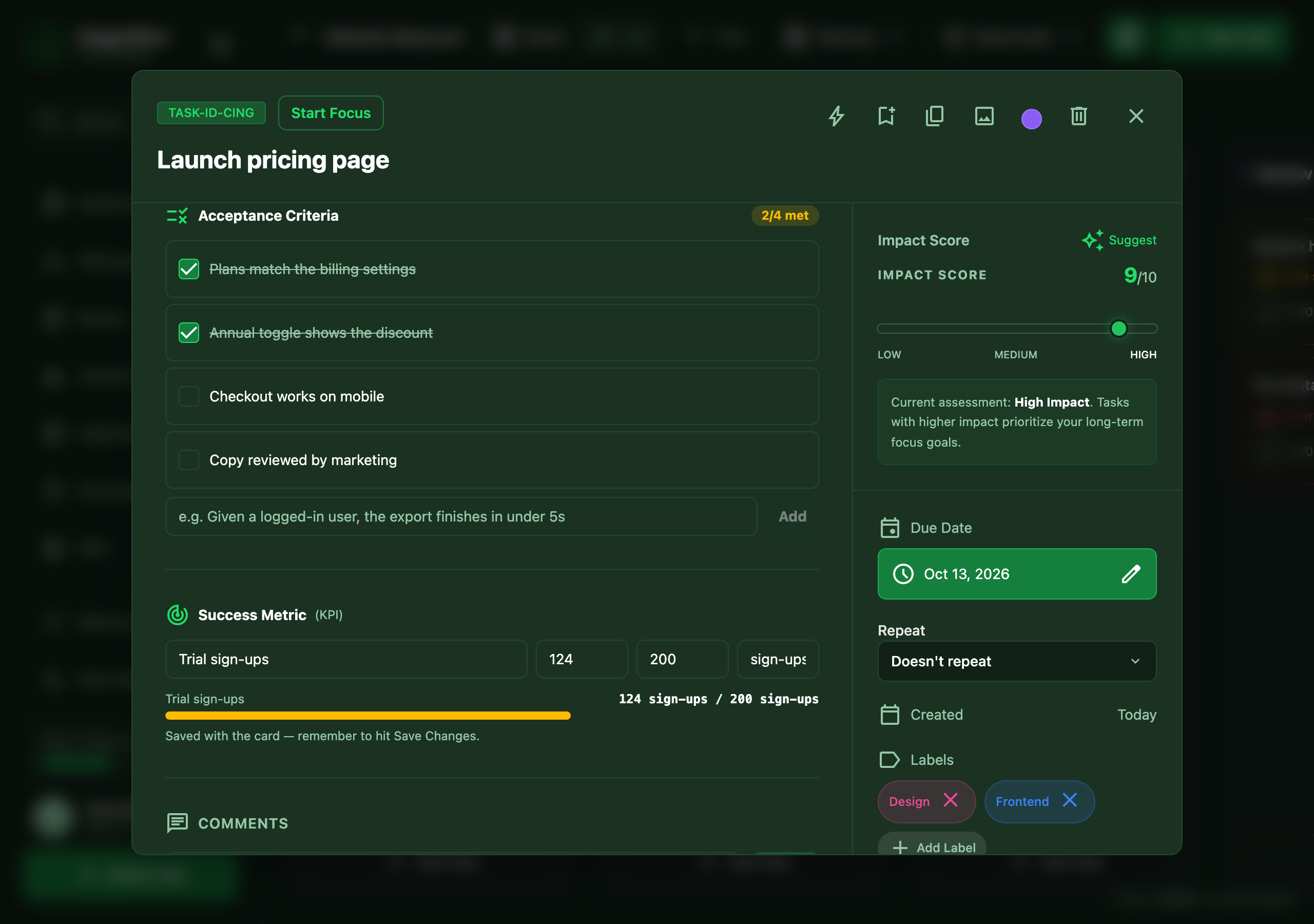
🎯 Acceptance Criteria & Success Metric
Every card can carry its own definition of done, Jira-style:
- Acceptance Criteria: checkable conditions, separate from subtasks — subtasks are how the work gets done, criteria are what must be true to call it done (e.g. "Given a logged-in user, the export finishes in under 5s"). The card face shows a criteria badge (
2/3) that turns green when everything is met — an amber badge on a completed card is your signal something slipped through. - Success Metric (KPI): a measurable outcome — a name, a current value, a target, and a unit (e.g. "Signup conversion · 3.1 → 5 %"). The card shows a live progress bar toward the target and a percentage badge on the board.
✅ Checklists (Subtasks)
- Breaking it Down: Use checklists to split a big task into smaller steps.
- Review: A progress bar appears, showing the completion percentage (e.g., "2/5 completed").
- Management: You can delete items or drag to reorder them within the checklist.
📅 Dates & Reminders
- Due Dates: Set a specific deadline (and optionally a time). The card will show a badge on the board:
- Yellow: Due soon.
- Red: Overdue.
- Green: Complete (click the checkbox on the date badge).
- Start Dates: Useful for tracking when work should begin.
- Alerts: the board owner and the task's assignees automatically get a due soon alert as the date approaches and an overdue alert once it passes. Turn the email versions on or off in Settings → Notifications. There are no per-task reminder times.
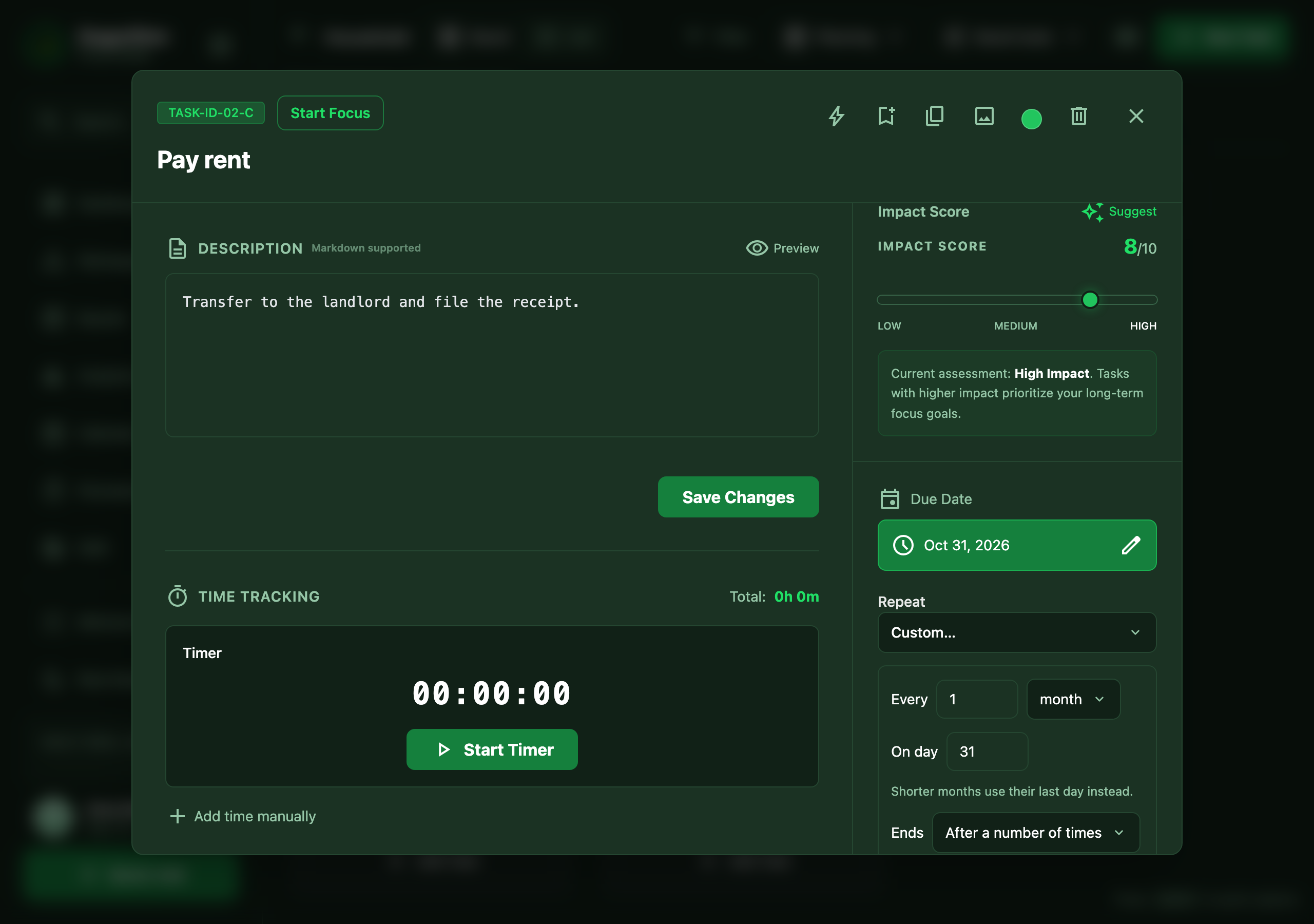
- Repeating tasks: open a task and choose a Repeat: daily, every weekday, weekly, monthly, yearly, or Custom… (every few days, weeks, months or years; chosen weekdays; a day of the month; and when it ends: never, on a date, or after a number of times). Quick Capture has the same choice. A repeating task shows a repeat icon on its card; hover it to see the pattern.
- One task at a time: finishing the task puts the next one in your Inbox with the same details, labels, assignees and a fresh checklist. Nothing new appears while the current one is still open, even when it's overdue, so copies never pile up.
- Finishing late puts the next one on the first matching day from today, so it never arrives already overdue.
- Skip this one (under the repeat summary) moves the task to its next date without finishing it.
- Finished by mistake? Move the task back out of Done and the untouched next one is removed again.
- Change or stop the series from any of its tasks: pick a new pattern, or Doesn't repeat. Deleting the current task ends the series; restoring it from the activity feed brings the series back.
- Month ends: a task due on the 31st lands on the last day of shorter months and returns to the 31st after.
Two-minute first steps
In a card's Micro-Actions, choose Suggest a two-minute first step. AI suggests one small action aimed at reducing the effort of starting. Review or edit the suggestion, then choose Add first step to put it before existing steps, or Discard. Suggestions are not saved until you add them. The existing Generate button still produces a full task breakdown.
This uses your existing AI configuration and quota. The two-minute duration is a prompt target, not a measured estimate; edit the step if it is too large for your task.
Writing starters: on a writing task — one labelled Writing, or whose title names a piece of writing (draft, chapter, essay, thesis, paper, report, proposal, article…) — Micro-Actions also offers three one-click first steps: Open the document, Write the worst first sentence and Outline for 5 minutes. Choosing one adds it as the first micro-action; starters the task already has are not offered again. No AI is involved.
Continue after completing a task
The first time you complete a task on the board (drag-and-drop, bulk move, or mobile move menu) or with the dashboard's Complete Task button, an optional Task complete. Keep going? panel suggests a next micro-action from the same board. Suggestions respect your current work permissions and skip completed tasks and unfinished dependency chains. Continue with this task opens the existing pre-flight check; it does not start focus automatically. Done for now dismisses the panel.
Bulk completion produces one suggestion. Reorders, retries, and completing a reopened task again do not repeat it. Undo or another move clears the previous suggestion. If nothing eligible is available, or suggestions cannot load, your completion still stands and no panel appears. Background and API changes do not open prompts in other people's browsers.
Flag and resolve a blocker
Choose Flag blocker in a card's Dependencies section, or Not ready? Flag blocker in its focus pre-flight check. Enter a reason and choose Save reason and block. This moves the task to Blocked, clears its focus-task flag, saves a Blocker: comment, and records in-app alerts for you, the board owner, and current assignees who still have board access. The move, comment, and alerts are saved together.
If the board has no Blocked column, an owner/admin can create it through this action. Contributors need an owner/admin to add the column first. Already-blocked tasks accept further updates through ordinary comments; completed tasks must be reopened before flagging a blocker.
The confirmation suggests other eligible work on the same board. Open suggested task opens that card without starting a session. No suggestion is shown when no eligible task exists or the lookup is unavailable. Blocked tasks are excluded from suggestions and cannot start new focus sessions. Existing sessions keep running until you stop them.
When the blocker is resolved, move the task to an appropriate column. The original reason stays in comments and follows normal comment edit/delete permissions. Moves into In Progress or Focus now run the readiness check below.
Readiness before board moves
Moving a task into In Progress, In Focus, or Focus opens Ready to start work? before the move is saved. This covers drag-and-drop, bulk moves, the mobile move menu, and undo when its destination is a working column. Column names are matched without regard to case or surrounding spaces.
Review every listed task and its direct/upstream prerequisites, check the readiness box, then choose Confirm move. You can acknowledge unfinished prerequisites when your next action can proceed independently. The server checks again before saving; if prerequisites or the source column change, it requests a fresh review. A bulk request saves all its moves together or none.
Choose Cancel move or press Escape to leave the unsaved move unchanged. The board reloads its current state. If the task is not ready, choose Not ready — flag blocker within the review and record why. Saving the blocker uses the existing comments/notifications flow and prevents the entire original move from continuing. Other tasks in the proposed bulk move remain unchanged. Close the blocker result and cancel the original move to return to the board. Reordering within a column, completing tasks, and moving to other destinations do not prompt. API/integration changes retain their existing behavior, and custom column names are not automatically classified as working columns.
⛓️ Dependencies
Link cards that depend on each other: mark a card as Blocked by another, and the relationship shows on both cards. The other card can be on any board in the same workspace: type two or more letters in the dependency search and matches from other boards appear under Other boards, with their board's name. A linked card from another board shows its board's name and opens there when you click it. (Personal boards link only within themselves.)
- Click View dependency chain in the card's Dependencies section to see direct and upstream prerequisites. Each entry shows its current completion status and how many steps away it is.
- Duplicate links and links that would create a circular chain are rejected, including chains that run across boards.
- When a prerequisite moves into a completed column, the board owner and current assignees of unfinished dependent cards receive an in-app notification, whichever board the dependent card is on. Click it to open the affected card. The alert means that prerequisite finished; other prerequisites may still be unfinished.
- Starting a focus session opens a Pre-flight check. Review the prerequisites and confirm that you have what you need. If some are unfinished but your next step can proceed independently, acknowledge them and choose Start anyway. Choose Not yet to leave your current session unchanged.
The server checks dependencies again before starting. If new unfinished prerequisites appeared, choose Check again and review them. These checks currently apply to focus sessions; dragging a card into In Progress does not automatically move it to Blocked.
⏱️ Time Tracking
Every card has a built-in timer — start it when you begin working and stop when you're done, or let a Focus Session track the time automatically. Entries accumulate into a total per card, so estimates meet reality.
📎 Attachments
- Files: Upload images, documents, or PDFs directly to the card.
- Covers: If you upload an image, you can set it as the Card Cover, making it display fully on the board view for visual flair.
💬 Comments & Activity
- Discussion: Use the comment box at the bottom to discuss the task. The card's assignees get an in-app notification and an email for every comment; type
@and a teammate's name to pull anyone else in with a mention (each person is notified once, and emails respect their notification settings). - History: Below the comments, an audit log shows every action taken on the card (who moved it, who renamed it, etc.), ensuring accountability.