Productivity Tools (Calendar, Pomodoro)
Dogorithm includes built-in tools to help you manage your time and stay aligned with your team.
Calendar View (/calendar)
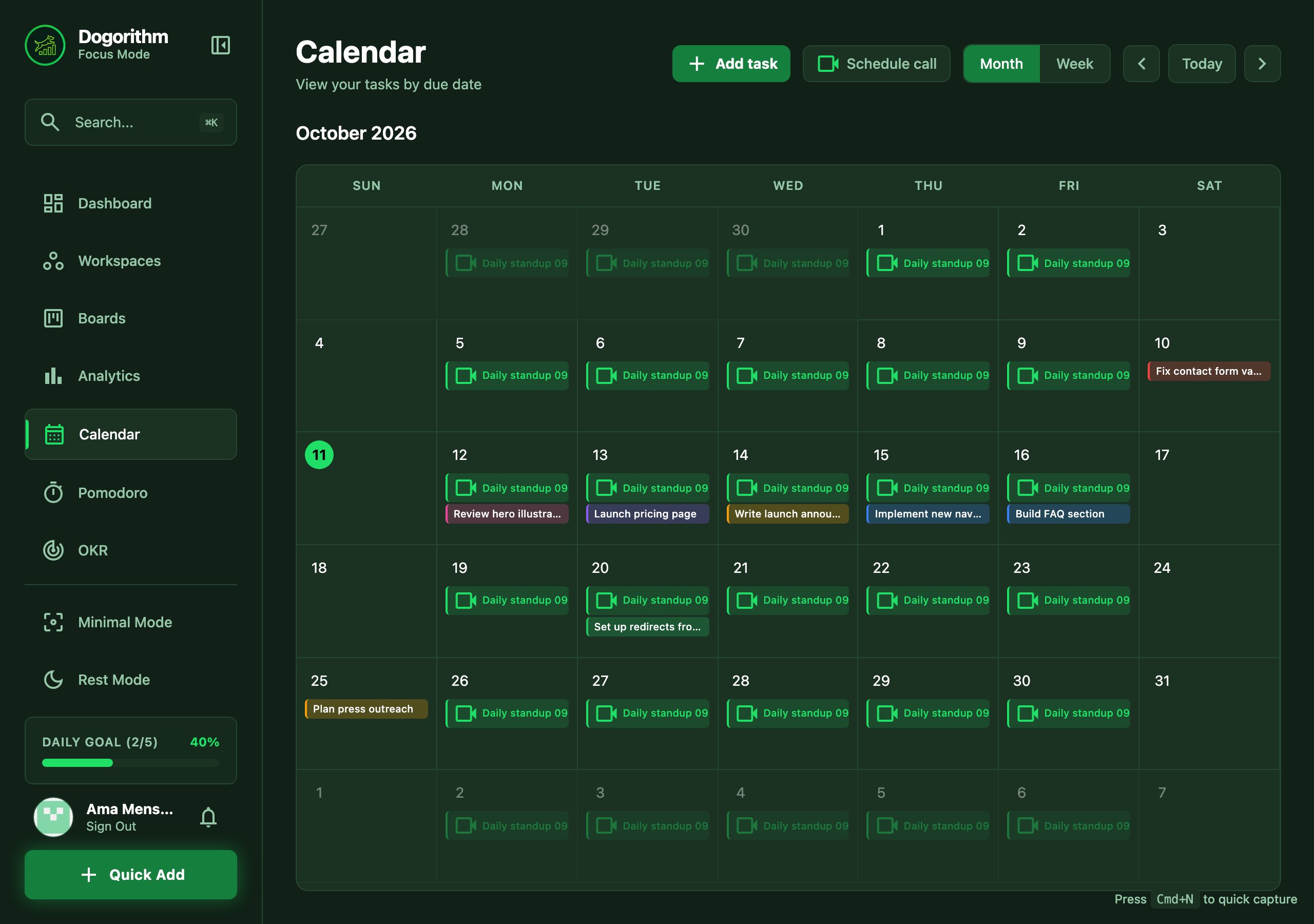
Visualize your deadlines on a monthly or weekly grid, and plan straight on it:
- Add a task on a day: hover a day and press its +, use Add task in the day panel, or the Add task button in the toolbar (it uses the selected day, or today). Quick Capture opens with that date filled in; add a time if you like. The card lands in your Inbox column and shows on the calendar immediately.
- Drag to reschedule: drag a task chip onto another day. The move shows instantly and is confirmed by the server — if you don't have edit rights on that board, it snaps back with a message. The time of day is kept. Prefer not to drag? Each task in the day panel has Reschedule (date picker) and a one-tap Tomorrow.
- Open a task: click a chip in the week view or the day panel to jump to the card on its board.
- Schedule a call (owners and admins): the toolbar's Schedule call button, or the camera button in a day's panel, books a one-off team call in the workspace's standup room — name, workspace, date and time, and optionally who's invited. Pick nobody and it's for the whole workspace; pick people and only they get the reminders, see it on their calendar and get it in their calendar file (owners and admins always see it, so they can manage it). It shows with a Join button, reminders go out when it starts, and past calls clean themselves up. The call still runs in the workspace room, so a teammate with the link can join too.
To see due dates in your own calendar app, subscribe to your personal feed (Settings → Calendar Feed).
On a phone the calendar adapts: month cells show colored dots (one per task, +N when a day is busy), tapping a day slides up a sheet with the full task list — times, boards, impact, and one-tap Join for standups — and the week view shows one full day at a time with a tappable date strip along the top. See Dogorithm on Your Phone.
The Pomorithm (/pomodoro)
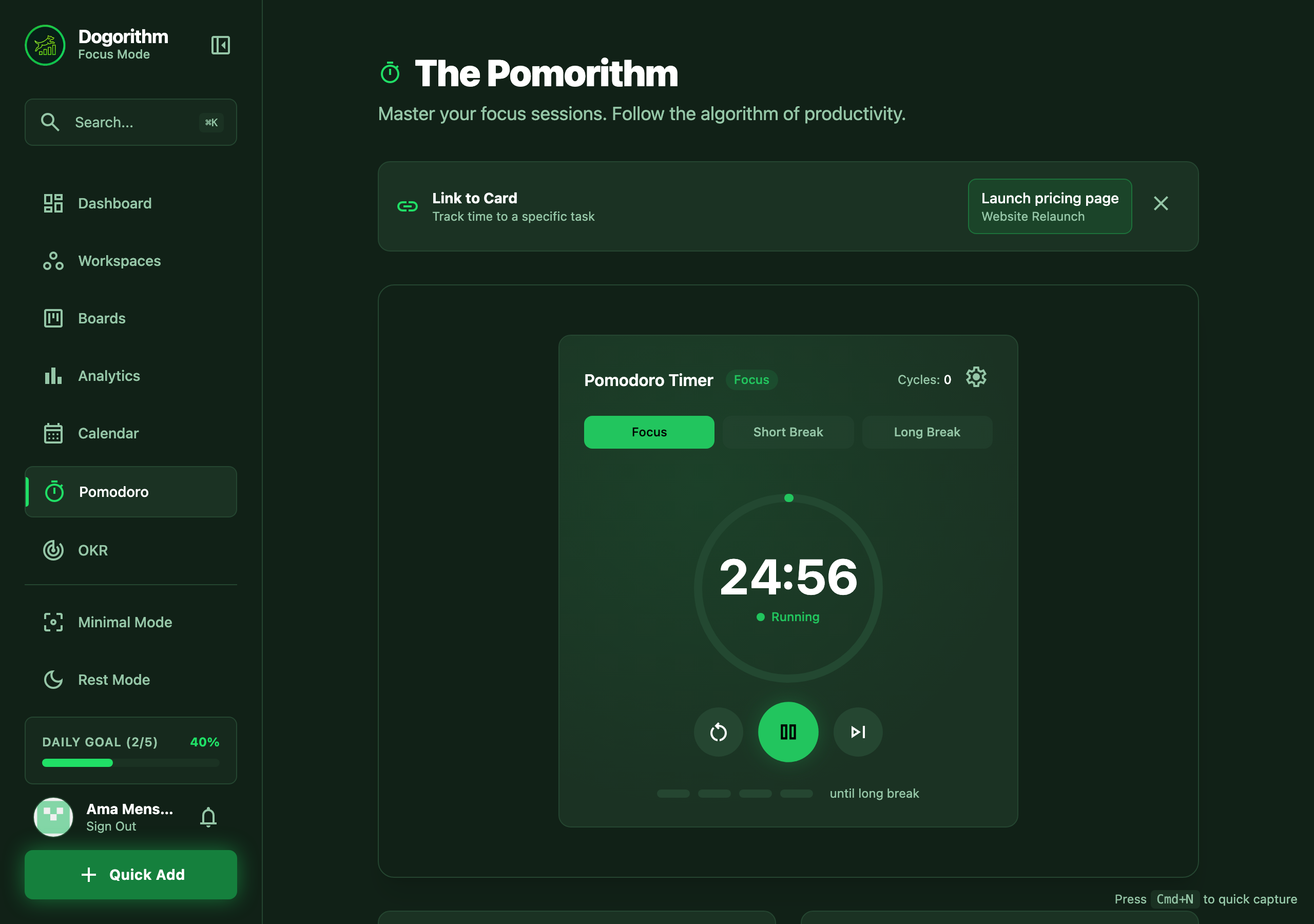
A specialized Pomodoro timer that connects directly to your cards.
- presets: 25 min (Focus), 5 min (Short Break), 15 min (Long Break).
- Task Link: Select a card from your board to track exactly how many "pomodoros" it took to complete.
Focus Sessions
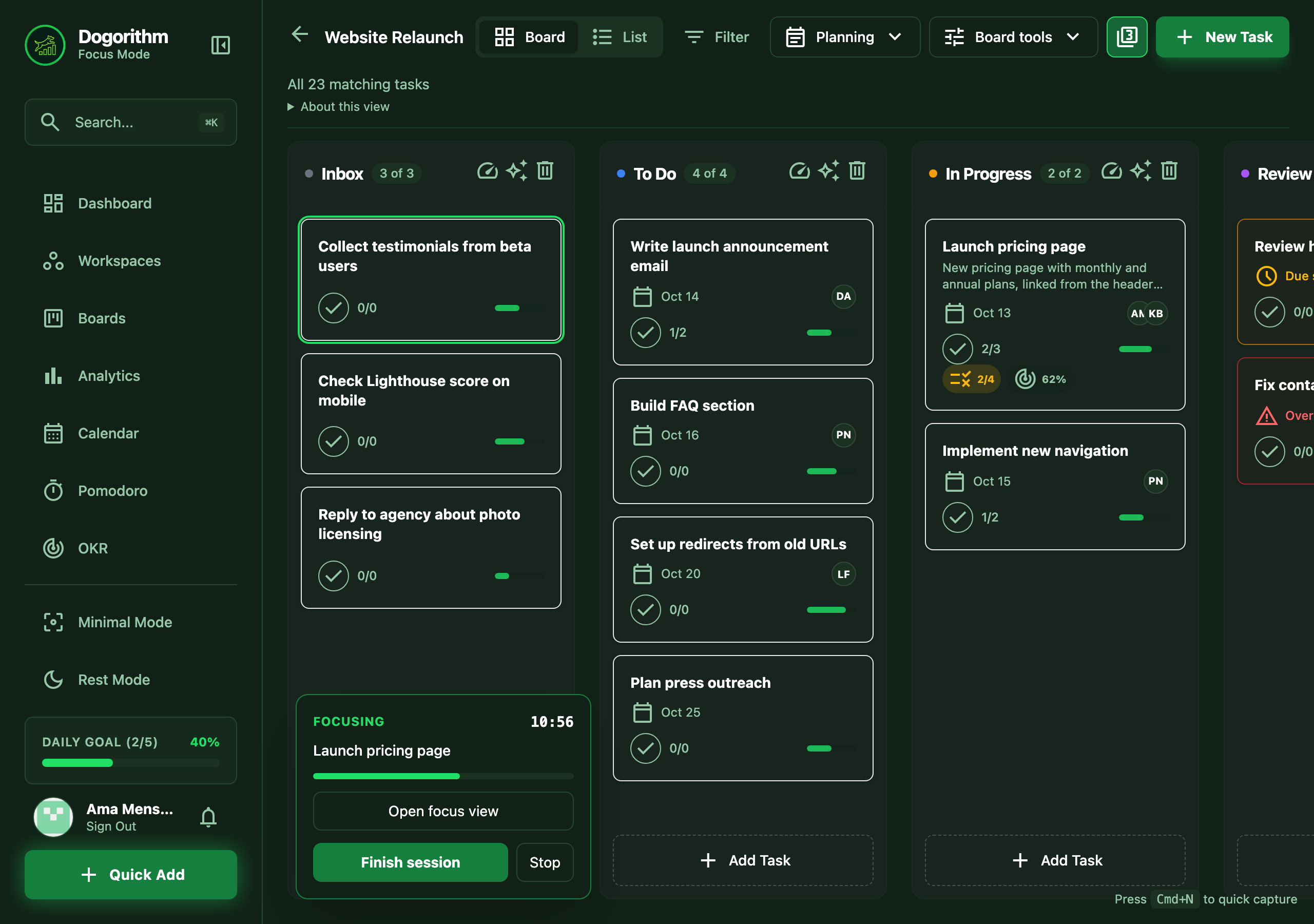
Start a focus session with Start Focus on a card or the morning brief's Focus on it button. Review the Pre-flight check, confirm readiness, and start. Search can help you find the card first:
- In the pre-flight check, choose 15, 25, 50, or 90 minutes, or Untimed — stop when you are ready. The existing default remains 25 minutes. Untimed sessions show elapsed time without a countdown or progress bar.
- A floating timer widget follows you around the app while the session runs. Open focus view covers the workspace with just the current task, its timer, and its next available micro-action. Back to workspace or Escape closes the view without ending the session.
- Finish session opens Close the loop. Add an optional note about what moved forward and where to resume, then choose Save and finish. The note is saved in the task's time log and is visible to teammates who can view that task. Stop keeps elapsed time without awarding XP.
- The completion screen suggests a next micro-action from the same board. It prefers unfinished work on the current task, then eligible tasks in impact order, excluding completed tasks, unfinished dependency chains, and tasks you cannot work on. Continue with this task opens its pre-flight check; Done for now returns to the workspace. Finishing a focus session does not mark the task complete.
- Time is tracked automatically against the card — no manual timers.
- Finishing a session earns XP toward your streaks, and teammates see a focus badge next to your presence, so they know you're heads-down.