The Standup Room
The standup page (/standup) is a complete daily-standup ritual: your prepared
update, a recurring schedule, and a full video meeting room — no external tool.
Compact standup toolbar
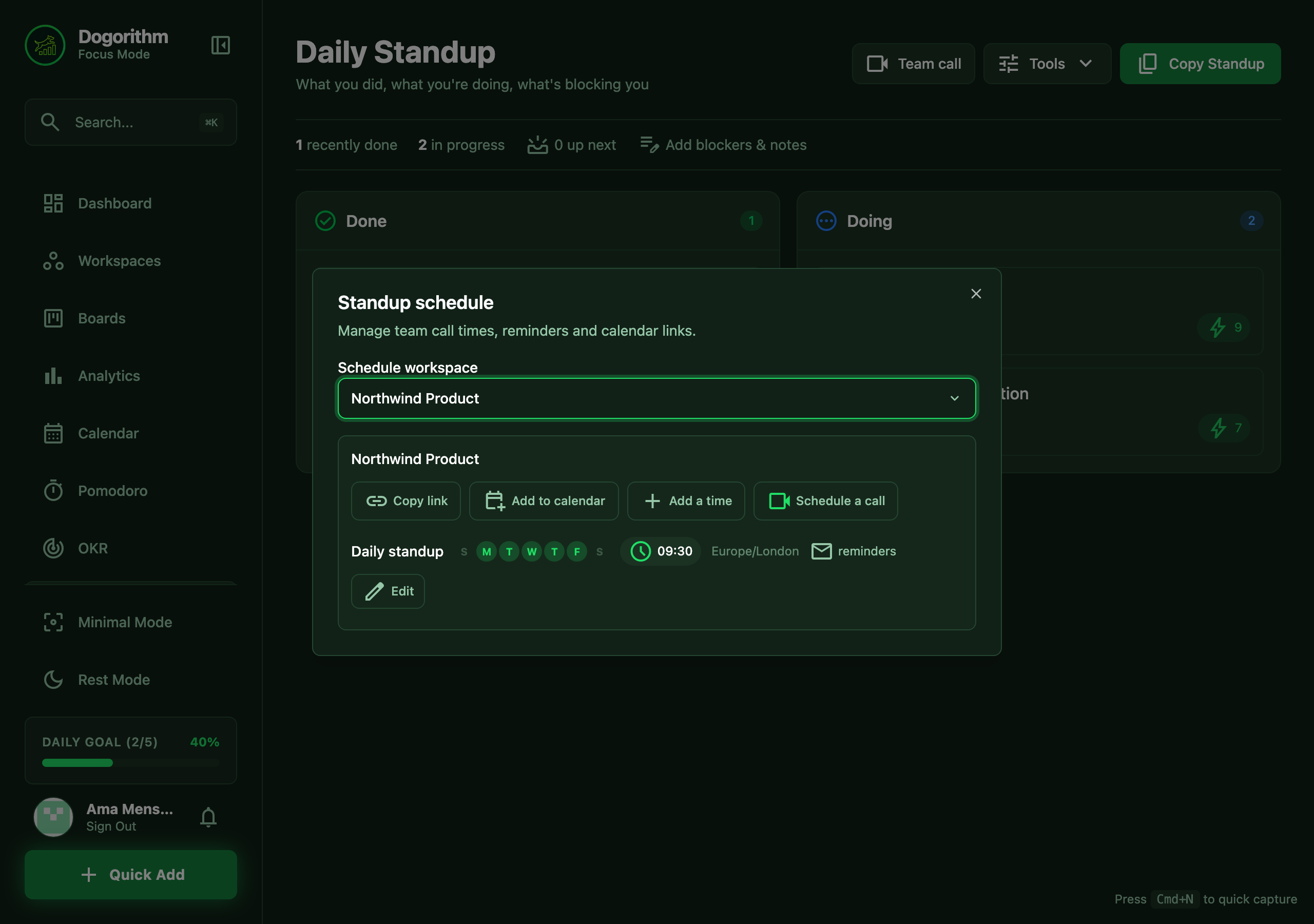
Done and Doing remain on the page, with a compact count row. Use Tools for Blockers & notes, Standup schedule, Up next, and Standup tips. These open focused popups instead of filling the page with panels. The schedule popup has a Schedule workspace dropdown; existing permission rules still control who can edit each workspace's schedule. Save schedule edits before closing.
Once you write blockers, the count row shows how many in amber (2 blockers); select it to edit them. If Done and Doing are both empty, one short prompt with Open your boards replaces the two empty lists. Without a workspace, a card explains that team calls, schedules and reminders need one, with Create workspace.
Team call opens workspace selection, invite-link copying, and the Join button. The camera preview and active meeting appear on the page when in use. Call preview / View call returns you to that panel. Existing join links and cross-tab takeovers still open the appropriate call screen.
The notes popup contains the date arrows. They select locally saved notes; Done and Doing continue to show current task activity. Copy Standup includes those notes and the selected date. Closing the popup keeps your notes. Escape returns focus to the toolbar. Green action buttons use white text.
Your Update
The page assembles your talking points automatically:
- Done: cards completed since the start of yesterday (server time).
- Doing: what you're currently working on, sorted by impact.
- Blockers & Notes: free-text areas, saved per day on your device.
- Copy Standup exports the whole update as markdown for Slack or email.
Scheduling the Standup
Workspace owners and admins can set recurring standup times on each workspace card:
- Pick the days, time, and timezone (defaults to yours), and give the slot a name — "Standup", "Afternoon sync". A workspace can keep several times (a morning standup and an end-of-day check-in, say); they all use the workspace's single call room, so Join call always lands everyone in the same place. A slot can also be one time only — pick a date instead of weekdays to book a single team call (the calendar's Schedule call does the same).
- Reminders: everyone gets an email, an in-app notification, and a push notification on their lock screen when the standup starts.
- Copy link shares the join link — teammates who open it land in the call's pre-join screen, ready to check their camera and hop in (even the login page remembers where they were headed).
- Add to calendar downloads recurring calendar events (Google, Apple, Outlook), one per standup time, with the join link inside.
If someone opens a join link for a workspace they're not in yet, they can request an invite with one click — the owner and admins are notified with the requester's email, or a pending invite for them is surfaced for one-click acceptance.
The Video Call
Press Join call and you land in a pre-join screen first — a private green room, like Google Meet's. You see a mirrored preview of your own camera, a live mic meter confirms "You're audible" when you speak, and you can mute the microphone or turn the camera off before anyone sees or hears you. Your choices carry into the call: join muted and you enter muted. Turning the camera off truly stops it — the camera light goes off. Join now enters the call; Back leaves the green room and releases both devices.
The browser asks for camera and microphone right there in the preview — if they're blocked, the screen explains how to fix it, or you can join listen-only. A camera that's off shows your profile photo or initials instead of a frozen frame.
On the call:
- Adaptive layout: 1–4 people get big tiles; larger calls densify into a grid that always fits your screen. Whoever is speaking gets a highlight, and muted tiles carry a mic-off badge.
- Start round runs the standup properly: everyone takes a timed 90-second turn in a stable order, with their Done / Doing / Blockers beside their video. Next speaker advances; when the round completes, teammates who missed it receive an AI-polished recap as a notification, and Summary copies the whole team's update as markdown.
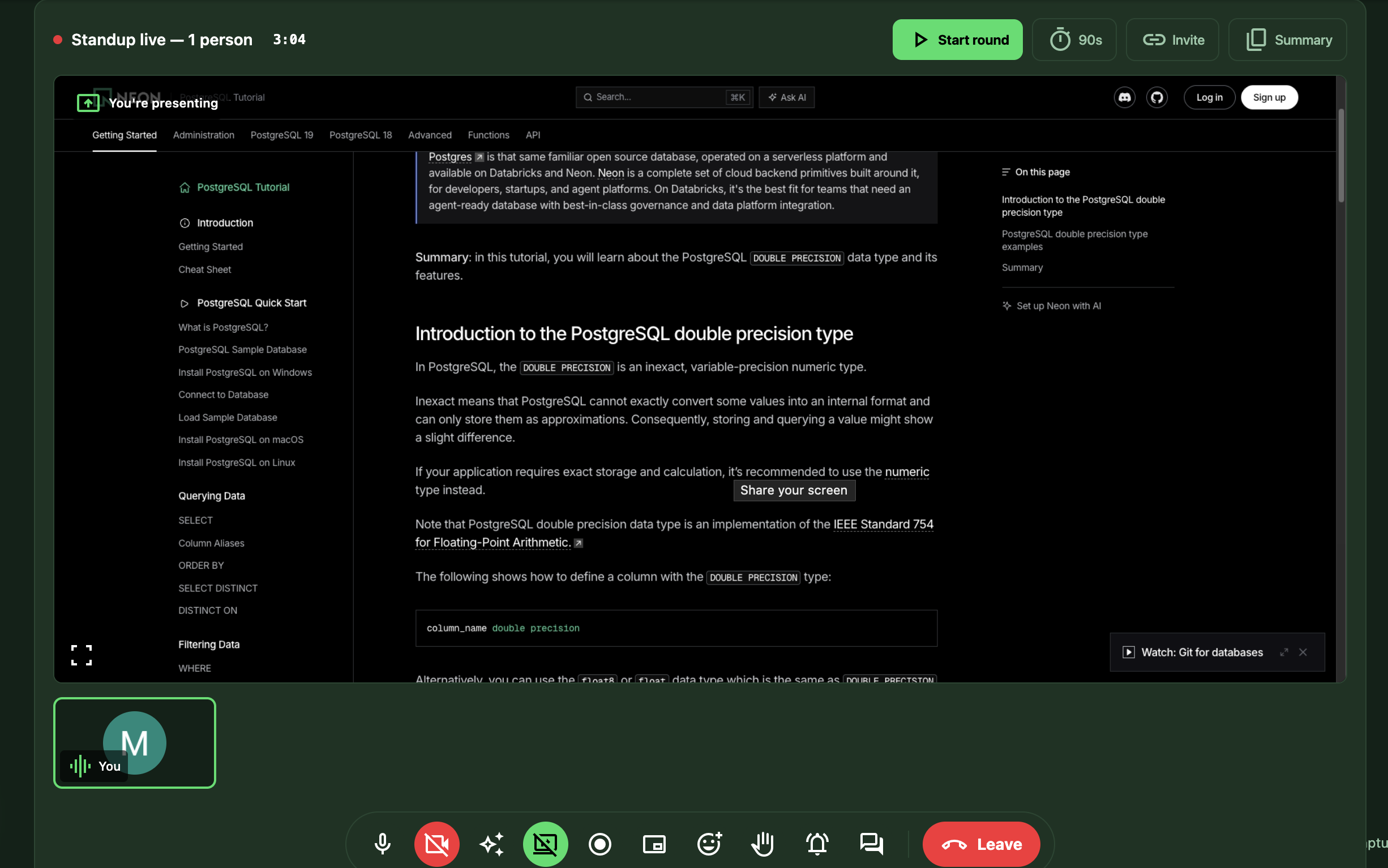
- Share screen puts your screen on a presenter stage (sharing a browser
tab carries its audio too) while cameras shrink to a filmstrip. Shares that
don't match your window's shape get a soft blurred fill instead of black
bars, and the ⛶ button in the stage's bottom-left corner takes the
share truly full-screen —
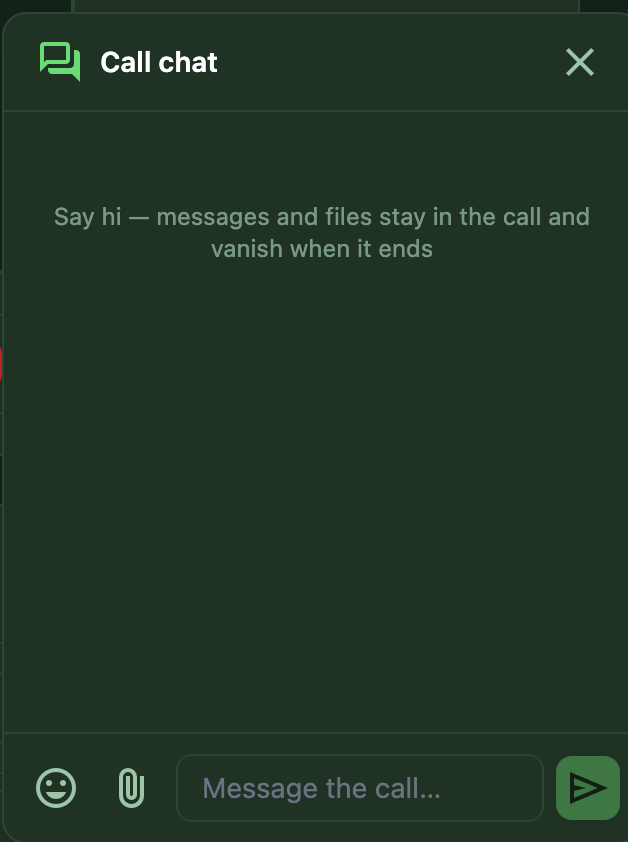
Escbrings you back. - Chat opens a panel for messages with an emoji picker, plus file sharing up to 25MB — files travel peer-to-peer to the people on the call and are never stored on a server. Images preview inline.
- Reactions (👍 🎉 😂 ❤️ 👏 🔥 😮 🚀) float up over the video for everyone.
- Raise hand shows a ✋ on your tile and adds you to an ordered queue in the header, so the facilitator knows who was first. Everyone else hears a soft chime when a hand goes up — even with the call docked or in another tab — and the 🔔 button in the toolbar mutes it on your device (remembered for future calls). Your hand lowers automatically when your speaking turn starts.
- Camera effects (✨) (Pro workspaces): blur your background, or replace it with one of seven hand-drawn scenes — Dusk, Slate, Office, Library, Plants, Skyline, Arches. Your choice is remembered for the next call, and it applies automatically when your camera comes back on. The midtone scenes (Dusk, Slate) give the cleanest edges in tricky lighting; blur is the most forgiving of all.
- Record the meeting (⏺) (Pro workspaces): recording captures everyone's voice, so it
starts with consent — clicking ⏺ asks every participant to allow it,
wherever they are in the app, and recording begins only when all of them
say yes (any decline, or no answer within 30 seconds, keeps it off — and
nobody is told who declined). Then pick a screen or tab in the share
dialog — usually the call tab itself — and Dogorithm records it with your
mic and every participant's voice mixed in. A red
RECchip with the recorder's name shows on everyone's screen — including people who join mid-recording, who also get a "this meeting is being recorded" notice. Stopping downloads the video file to the recorder's machine. Nothing touches a server. - Meeting clock: the elapsed time sits next to "Standup live" so nobody loses track of a standup turning into a summit.
- Host controls: the workspace owner and admins see mute and remove buttons when hovering a participant's tile. Both are enforced server-side — a removed teammate is disconnected immediately (removal asks you to confirm), and a muted one sees "muted by a host". The workspace owner can never be moderated.
- Invite copies the join link from right inside the call.
On a phone or a narrow window the toolbar never crushes its buttons — it scrolls sideways instead, so a quick swipe reaches every control including the red Leave button.
a live call: 3+ tiles with a speaker highlighted, a raised-hand badge, floating reactions, and the meeting bar
The Call Follows You
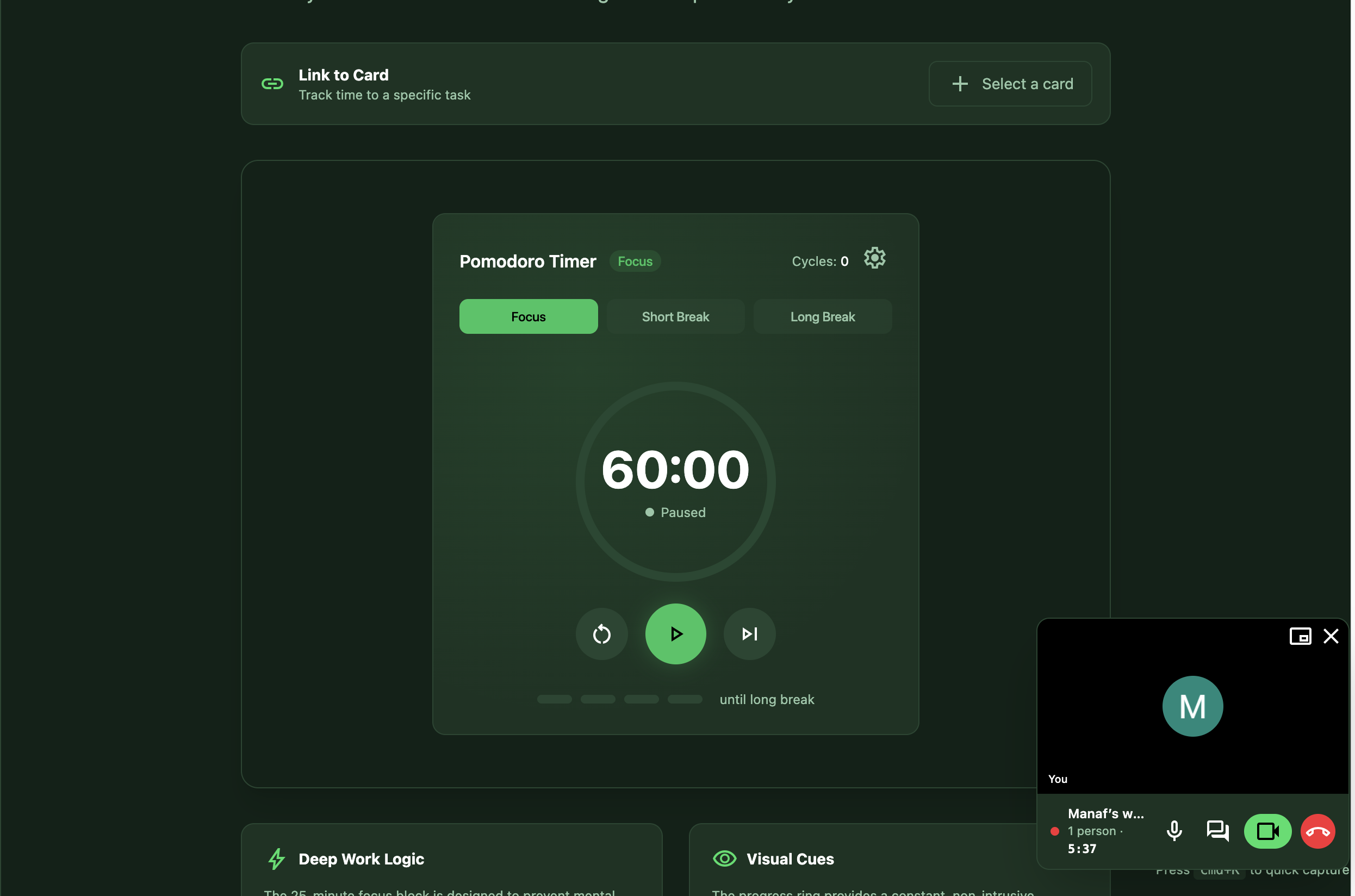
Navigate anywhere in the app mid-call — the call keeps going. A floating dock shows a live mini-video (the shared screen, or whoever spoke last), the participant count, the meeting clock, and mute / chat / return / hang-up controls. Chat and its unread badge follow you too.
- Drag it anywhere: grab the video and put the dock wherever it's least in the way — it stays there as you move between pages.
- Fold it away: the ✕ shrinks the dock to a small chip with a pulsing red dot, so the live call is never completely invisible (your mic might be hot!). The chip is draggable too; click it to bring the full dock back. Leaving the call still takes exactly one press of the red button.
The dock (and everything else in this section) works on every Dogorithm page — even the landing page and the developer docs.
Into other browser tabs
Open Dogorithm in a second browser tab while you're on a call and that tab shows a "Call in progress" card — the workspace, who's on, and the meeting clock, ticking live. Return to call asks the browser to bring the calling tab forward; most browsers refuse to switch tabs on a page's behalf, and when that happens the card offers Move call here instead — the original tab hangs up automatically and the call reconnects right where you are, one click, no hunting through tab bars.
the "Call in progress" card in a second tab, showing the Move call here offer
Outside the browser entirely — picture-in-picture
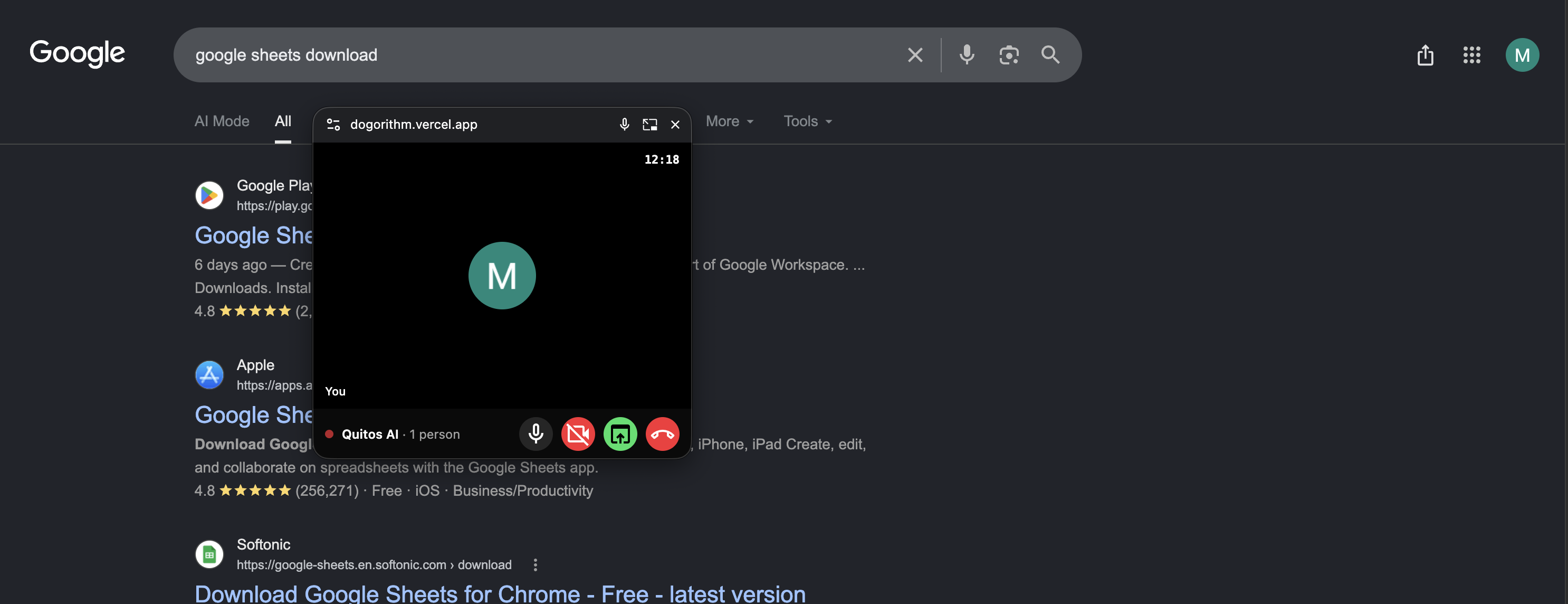
Switch to any other tab — Gmail, a doc, anything — and the call pops out into a floating mini-window that stays on top of every tab and every app, just like Google Meet. It shows the shared screen or whoever's speaking, the meeting clock, and live mic / camera / leave controls; its green button jumps you straight back to the Dogorithm tab. Return on your own and the window tucks itself away again.
- It opens automatically when you leave the tab mid-call (Chrome and Edge; your mic or camera needs to be on — that's the browser's signal that the call is live).
- Prefer it on demand? The picture-in-picture button on the call toolbar and on the dock pops it out any time, even in listen-only mode.
Voice Calls
Sometimes you don't need the whole standup room — you need one person, right now. Open a workspace's Members panel and every teammate has a call button: click it and a voice call starts ringing them, Slack-huddle-style.
- Calling: you're in the room immediately, with a soft ringback tone
while you wait, and the call opens at full size — the same stage as
the standup room, with camera, screen sharing, effects, recording,
reactions, raised hands, chat, and an add-people picker all in the
toolbar. Press
Esc(or the shrink button, top-right) to fold the call into the floating dock and keep working — "Ringing Ama…" stays under the dock's title, and the expand button on the dock's video brings the full screen back any time. - Being called: a ringing card slides in at the top-right of every Dogorithm tab you have open, with the caller's face and a ringtone — and if you enabled Web Push, your lock screen rings too; tapping the push joins the call directly. On Android the notification behaves like a real phone call: it vibrates, stays up until you act, and carries Answer and Decline buttons right on the lock screen; a call you miss turns the ring into a missed-call notice. On iPhone, add Dogorithm to your Home Screen first (Share → Add to Home Screen) — iOS only rings installed apps, and Dogorithm will remind you of this after your first call. Accept connects you mic-first (camera off); Decline quietly tells the caller you can't make it. Answering on one device stops the ringing on all your others. If you're already on a call, accepting switches you over.
- No answer? The ring gives up after half a minute. Whoever missed it finds a missed-call notification in their bell — no awkward "did you call me?" archaeology.
- Small groups: once you're on a call, the person-add button on the dock rings more teammates into it (calls are capped at 8 people). Need to show something? Flip your camera on from the dock — a voice call is a video call that starts polite.
- Private by invitation: a voice call's room is opened by a signed, expiring invite — being in the same workspace is not enough to join one, and your invite doubles as a rejoin pass if your connection drops.
Voice calls ride the same machinery as the standup room, so chat, reactions, cross-tab handoff, and picture-in-picture all work exactly the same way.
the incoming-call card with Accept/Decline, and the dock showing "Ringing…"
Everything in the room is ephemeral by design: chat, files, reactions, and hands live only in the call and vanish when it ends. Voice calls leave no trace beyond the missed-call notification. Only the round recap (which you explicitly send) becomes a notification.