Dashboard & Workspace Management
URL: /dashboard
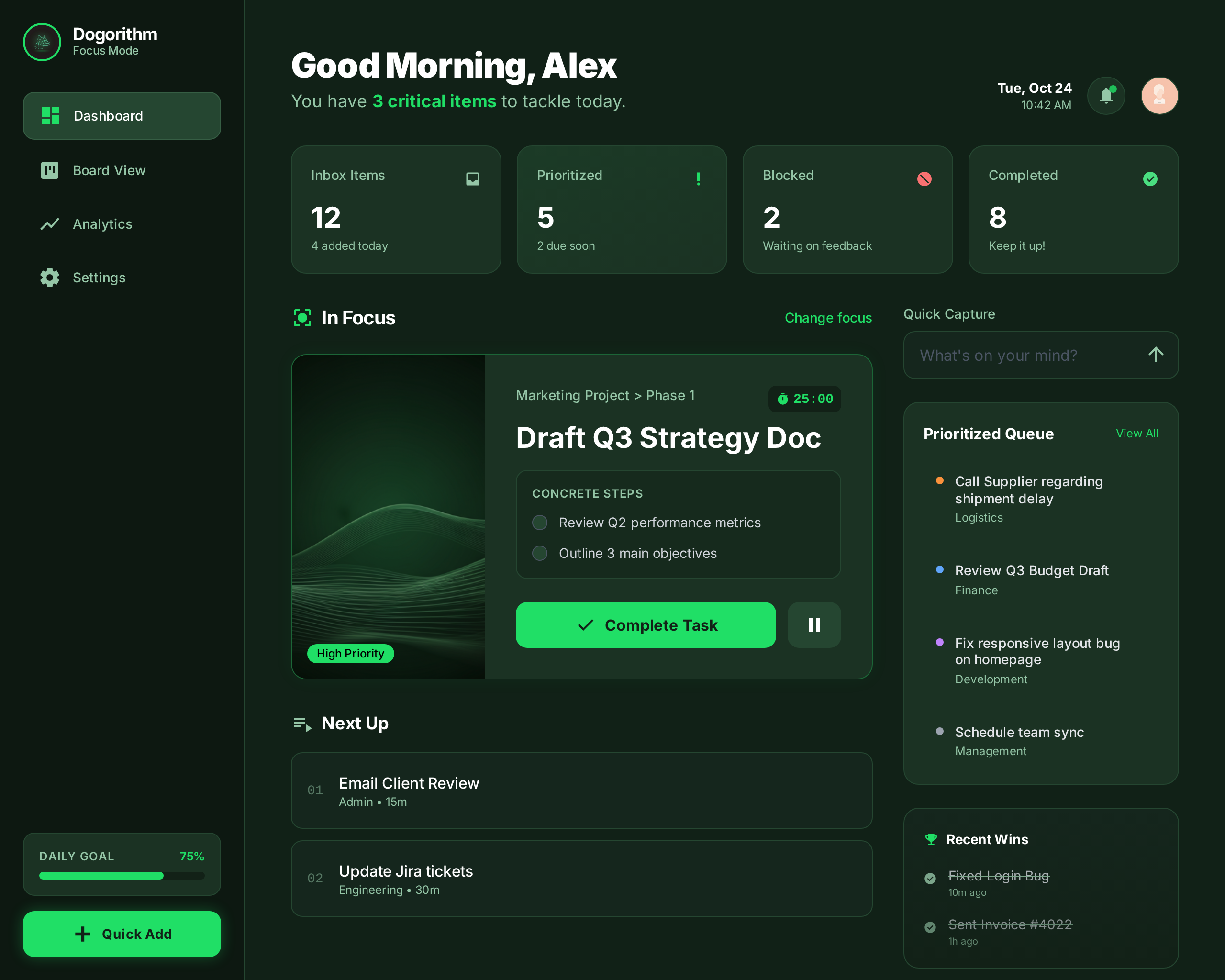
After logging in, you arrive at the Dashboard. This is your "Mission Control" center.
Dashboard Layout Explained
Top Navigation Bar:
- Search: This is a global search bar. Type any keyword to find Boards or specific Cards across all your workspaces.
- Theme Toggle: Switch between Light Mode (for bright environments) and Dark Mode (for low-light focus).
- Profile Menu: Access your personal settings or log out.
- Collapsible sidebar: the chevron next to the logo folds the sidebar into a slim icon rail for more working room — your choice is remembered.
Recent Boards Carousel:
- This section remembers where you've been. It displays the boards you last visited, allowing you to jump back into work immediately without searching.
Progress Lens and Momentum Map:
- Progress Lens shows how many tasks you finished this Week, Month or Quarter and compares it with the same point of the previous one, e.g. "You've finished 23 tasks this month. That's 4 more than by this point last month."
- Momentum Map charts the tasks you finished each week for the last 12 weeks and counts your run of weeks with finished work (an unfinished current week doesn't break it).
- Counts are your own completions of tasks still in a Done column, by UTC week (weeks start Monday); reopened tasks drop out.
Activity Feed:
- A real-time chronological log of everything happening in your workspaces.
- Examples: "Alice moved 'Fix Bug' to Done", "Bob commented on 'Design'".
- Use this to catch up on team progress without opening every single board.
Team Pulse
Open a workspace and select Team Pulse in its toolbar. This report is available to the workspace owner and admins. Select Today, Last 7 days, or Last 30 days, then Load pulse. Periods include today and use UTC. Refresh pulse updates the snapshot; changing the period clears the old results until you load it.
The report shows three workspace totals and an expandable Board breakdown:
- Completed in period counts tasks currently in Done, Complete, or Completed columns whose latest recorded completion falls within the period. Reopened, deleted, undated, and future completions are excluded. Each task counts once.
- Blocked now counts tasks currently in Blocked columns, regardless of the selected period. Needs attention now links directly to these tasks. The list shows up to 50 tasks, ordered by board and title; totals include every blocker.
- Saved focus time totals saved time entries matching completed or abandoned Focus Mode sessions. It excludes active sessions, unmatched manual entries, and tasks currently labeled Meeting/Meetings, consistent with Meeting Audit. Time crossing the period boundary is prorated and capped to elapsed time; overlapping entries are summed, not deduplicated. Low recorded time does not mean low effort.
Only active (non-archived) boards currently in the workspace count. Historical contributions remain included after a person leaves; there are no individual time records, presence indicators, or rankings. Task movements, deletions, archived boards and label changes affect the next snapshot. Blockers describe current column placement, not a historical blocker count or every dependency issue.
Each load checks your current admin access. Failed loads clear the prior report and allow retry. This is read-only reporting; it changes no tasks, memberships, time entries, or focus sessions. No new migration is required.
Accountability Pods
A small group of 3–4 teammates who check in on each other every week. Open a workspace and select Pod in its toolbar. Any workspace member can use it.
- Join: select Join the matching pool. Once three people in the workspace have opted in, they form a pod. Later joiners fill the smallest pod that has room, up to four people, before a new pod forms. You get a notification when you're matched, and pod members are told when someone joins.
- Commit: in This week, write one small action you'll finish (up to 280 characters) and select Save commitment. You can edit it until you mark it.
- Check in: select Done or Missed, with an optional note for your pod. You can still mark or correct last week's commitment, and change a mark later. The popup shows everyone's commitments and results for this week and last week.
- Leave: select Leave this pod (or Leave the matching pool) and confirm. Your check-ins in that pod are deleted. If someone is waiting, they take your place. A pod left with one person closes, and that person returns to the matching pool and is notified.
Weeks start Monday 00:00 UTC. Pods form only inside one workspace; nobody is matched with people outside their team. Only pod members see a pod's members and check-ins, and workspace owners and admins can't see them. Someone removed from the workspace leaves their pod at once.
Managing Workspaces
Workspaces are containers for your boards and team members (e.g., "Engineering", "Marketing").
Creating a Workspace: Click the "+" button in the sidebar. Give it a name to create a new isolated environment.
Inviting Members: Within a workspace, you can invite colleagues by email. Once they accept, they gain access to all boards within that workspace. Invites expire after 7 days; inviting the same address again simply replaces the pending invite (it never counts twice toward seats). Only owners and admins see the pending-invite list.
Audit log (owners and admins): the Audit log button on the workspace page lists who did what, newest first: invites, people joining and leaving, role changes, ownership transfers, renames, boards created, archived or deleted, billing changes, chat channels, automations, webhooks and single sign-on. Download CSV saves the latest 10,000 events as a spreadsheet. Events are kept for a year.
Two-step sign-in
Two-step sign-in asks for a code from your phone after your password, so a leaked password alone can't open your account.
- Open Settings → Account → Two-step sign-in and choose Turn on.
- Enter your password, then scan the QR code with an authenticator app (Google Authenticator, 1Password, Authy and others). If you can't scan, type the key shown under it.
- Enter the 6-digit code the app shows, then save your backup codes. Each works once and gets you in if you lose your phone.
When you sign in with your password, Dogorithm then asks for the code. Tick Trust this device for 30 days to skip the code on that browser. Use a backup code takes one of the saved codes instead. After several wrong codes the second step locks for a few minutes.
New backup codes replaces the old set, and Turn off removes the second step; both ask for your password. If you sign in with Google or GitHub, those accounts' own two-step settings protect you instead.
Single sign-on (SAML)
On the Pro plan, people with your company's email can sign in through your identity provider (Okta, Microsoft Entra ID, Google Workspace, OneLogin or any SAML 2.0 provider) instead of a Dogorithm password. Owners and admins set it up from Settings → Single sign-on (pick the workspace first if you manage several):
- In your identity provider, create a SAML app. Copy the Single sign-on URL (ACS) and the Audience URI (entity ID) from that page into it. Send each person's email as the Name ID (email address format) or as an
emailattribute. - Back in Dogorithm, enter your company's email domain, the provider's entity ID (issuer), its sign-in URL and its signing certificate, then Save.
- Add the TXT record the window shows at your DNS host, then choose Verify domain. DNS changes can take a few minutes to appear. You can remove the record once the domain is verified.
After that, anyone with an address on that domain (or one of its subdomains) can choose Single sign-on (SSO) on the login page and enter their work email. Their first sign-in creates their account, already verified, and adds them to the workspace as a member when a seat is free. People who already have an account with that email keep it and can use either way to sign in.
Some rules keep this safe:
- Public email services such as gmail.com or outlook.com can't be claimed.
- A domain signs in to one workspace only. Verifying it removes other workspaces' unproven claims on it.
- Your identity provider can only sign in addresses on your verified domain.
- The audit log records when single sign-on is set up, verified or turned off, and who joined through it.
Remove turns single sign-on off. Accounts stay, and people can set a password with Forgot password? on the login page.